![Holistiplan Logo (800x200 px).webp]](https://help.holistiplan.com/hs-fs/hubfs/Holistiplan%20Logo%20(800x200%20px).webp?width=160&height=40&name=Holistiplan%20Logo%20(800x200%20px).webp)
To enable this feature, Firm Admins can navigate to Settings > Features & Tools > Tax, and toggle on Client Upload Links and Client Upload Links for 1040 Tax Return Upload under Permissions.
Note: Clients will be prompted to agree to Holistiplan's Terms and Conditions when they submit a return via the client upload links. Those Terms and Conditions can be found here.
Creating a Link
Once enabled, navigate to any client household, and select Returns & Transcripts within the Tax tab.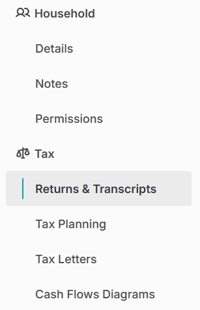
Click the Create Upload Link button to create a unique link for any client listed in a given household for any specific tax year supported within.
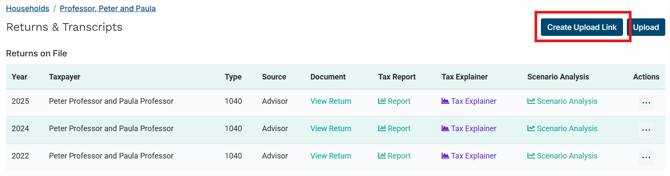
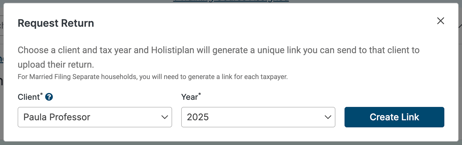
Created links will show up in the Client Upload Links section. Note that the generated client upload link expires after 21 days for security purposes. Users can extend the expiry date under Actions.
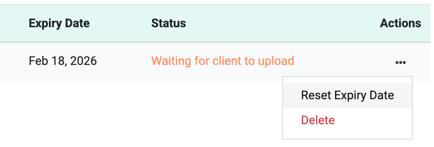
Copy the link generated and send to the client, which will allow them to upload their return or tax transcript. Each link can be used once for one year. For multiple returns, a new link must be created for each year.
Please note that, similar to advisor-uploaded returns, the return will need to be in a single PDF that is under our 50MB size limit and includes the necessary forms and schedules needed to process the submitted return.
To use a Tax Transcript with Holistiplan, clients will first need to retrieve the Return Transcript from the IRS by signing up or signing into their ID.me account here.
Note: There are 4 types of IRS transcript documents. Please use the Return Transcripts type when uploading to Holistiplan.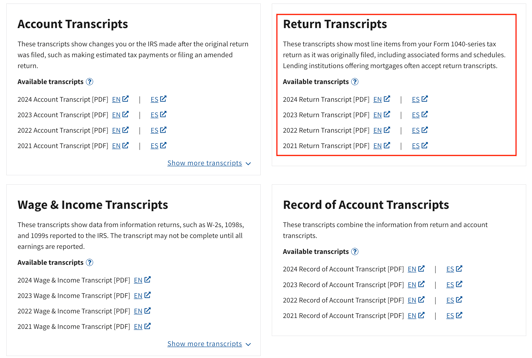
What Next?
Once the client uploads the requested return, Holistiplan will process the return through our OCR (Optical Character Recognition) software, and if needed, through a manual review process from one of our support specialists.
When processing of the return is complete, the return will show up in the "Tax Returns" section with the "Client Upload" as the source of the return. The user who created the Client Upload Link will receive emails from Holistiplan, noting when the return has been successfully processed, or if not, the reason the return upload failed.
If your firm has enabled the auto-delete feature, please note that Holistiplan will continue to delete the PDF of those client-uploaded returns as well. To allow for the download of client uploads, the PDF of the return for a client-uploaded return will not be deleted until five (5) days after it is uploaded.
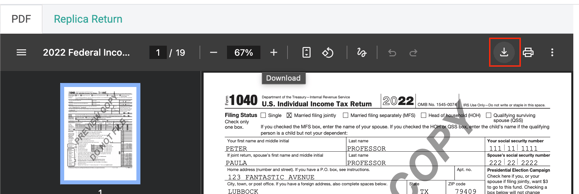
To download a tax return or transcript that has been uploaded by a client, click on the "View Return" link within the "Tax Returns" section of the household, which will open up the Document View page. The tax return PDF will show on the left, and Holistiplan's data entry panel on the right. You can then click the download button to save a copy of the tax return PDF to your computer for your firm's files.