![Holistiplan Logo (800x200 px).webp]](https://help.holistiplan.com/hs-fs/hubfs/Holistiplan%20Logo%20(800x200%20px).webp?width=160&height=40&name=Holistiplan%20Logo%20(800x200%20px).webp)
Clients can upload documents manually or retrieve them through our Canopy Connect integration when enabled. This tool makes gathering insurance data fast, secure, and integrated directly into your Holistiplan review process.
This article describes how to enable and use the client upload link for Property and Casualty insurance policies, starting first with a video overview and followed by specific instructions:
Enabling the Client Upload Link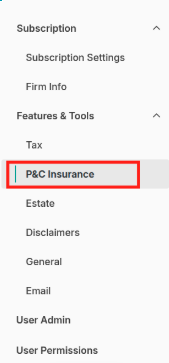
To enable the P&C Insurance Client Upload Link:
- Navigate to Settings > Features and Tools > P&C Insurance
- Toggle on Insurance Client Upload Links

Note: This permission must be enabled for the link to appear in the Household view
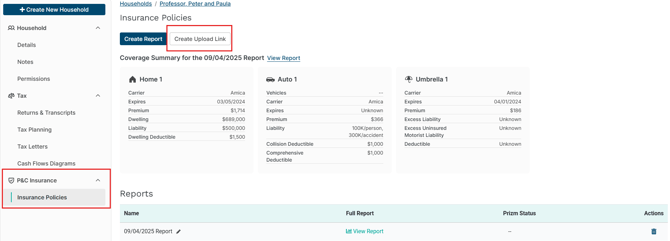
Once enabled, a Create Upload Link will appear in the Insurance Policies section of P&C Insurance.
Creating a Client Upload Link
- Open the desired Household.
- Select Insurance Policies under P&C Insurance from the left navigation panel.
- Click Create Upload Link
- Select the Documents to Request
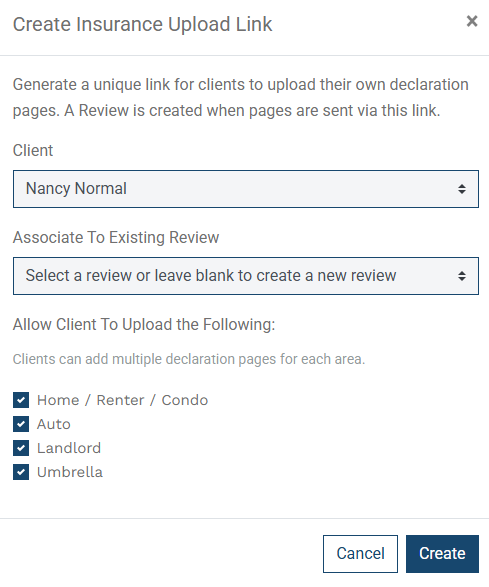
This step allows users to choose which types of P&C documents the client should upload. The options selected here determine what appears on the client’s upload page.
For example, if we know the client does not have a landlord policy, we can simply uncheck that option so it does not appear when they access the upload link.
Note: If you leave an option selected, such as Umbrella, but the client does not actually have that type of policy, they will still be able to proceed and submit the documents they do have without issue.
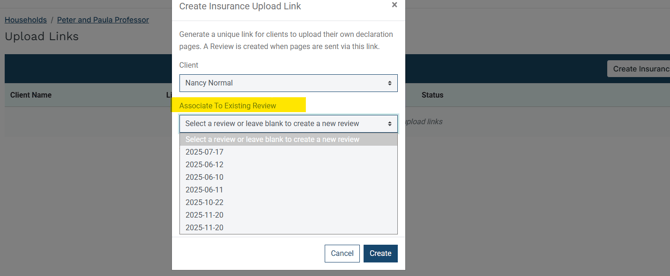
If the household already has a P&C insurance review in progress, associate the upload link with that existing review so that any documents the client uploads are added directly to it rather than starting a new review.
Users can also select which document types the client can provide:
Check the appropriate boxes to specify which documents are required.
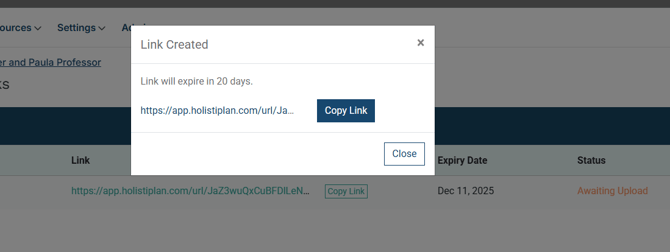
After clicking create, a secure link will be created that can be copied and shared with the client. This link is active for 20 days.
Client Experience
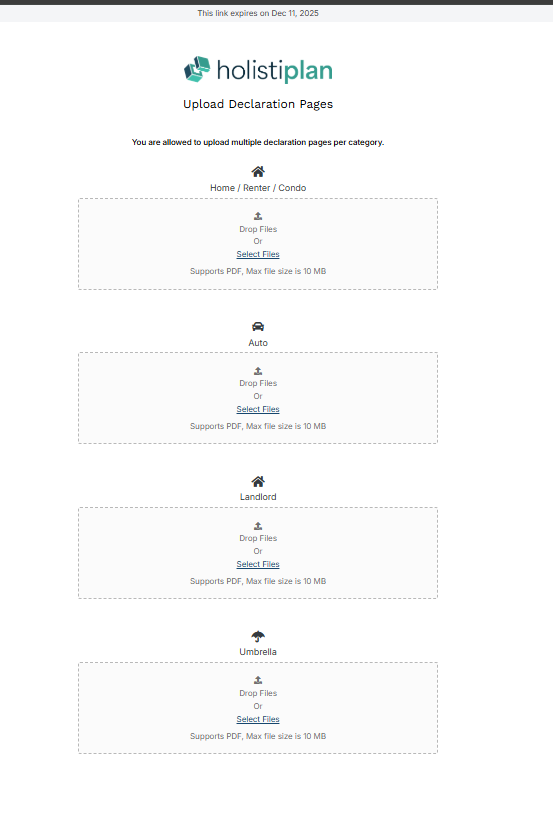
When clients open the link, they will see a simple, secure page prompting them to provide their P&C insurance documents. Clients can manually upload a PDF of their homeowners, renters, condo, auto, landlord, and umbrella declaration pages.
Where Uploaded Documents Appear
Once the client submits their declaration pages:
- They appear directly within the household’s Insurance Review section.
- Advisors can view, download, and view the documents immediately. If auto-delete is enabled, the documents will remain in the household for 5 days before being deleted.
- The advisor will only receive an email once the documents have gone through the OCR process and are ready for the advisor to present.
Best Practices for Advisors
- Use the upload link at the start of every P&C review to streamline document collection.
- Select only the document types you need to help clients understand exactly what to provide.
- Resend the upload link at any time if additional documents are required. The link will automatically expire in 20 days.
- Enable Canopy Connect for faster, more complete data collection when possible. More on that integration can be found here.