Learn how to upload Trust & Will documents
Learn how to upload Health Care POAs and Advanced Directives
Learn how to upload Financial POAs
If you haven't already reviewed our KB article on which documents to upload, we highly recommend taking a look before continuing.
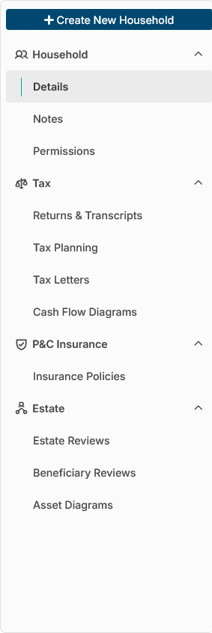
To start an Estate Review, navigate to the client's household page and click Estate Reviews in the left-hand navigation panel. Then click "Create Estate Review" in the upper right hand corner on the subsequent screen.

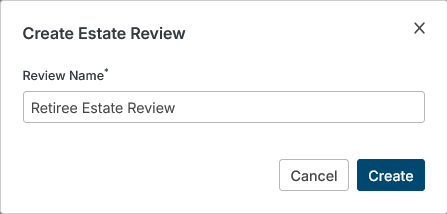
Enter a name for the review and click "Create" when done.
This bring up the document upload screen, with three different upload sections.
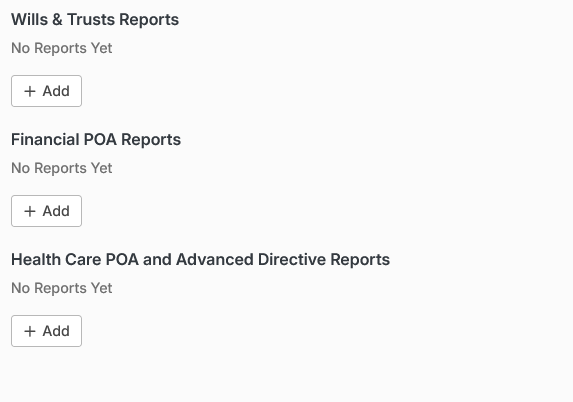
Wills & Trusts
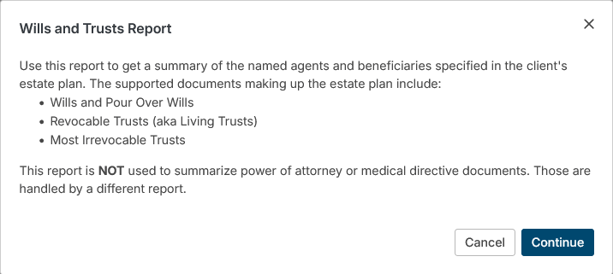
To upload Wills & Trusts, click the "+Add" button under the Wills & Trusts Reports header. Review the instructions and click the "Continue" button to bring up the upload dialogue box. Drop all files into the box, or click to choose files from your system.
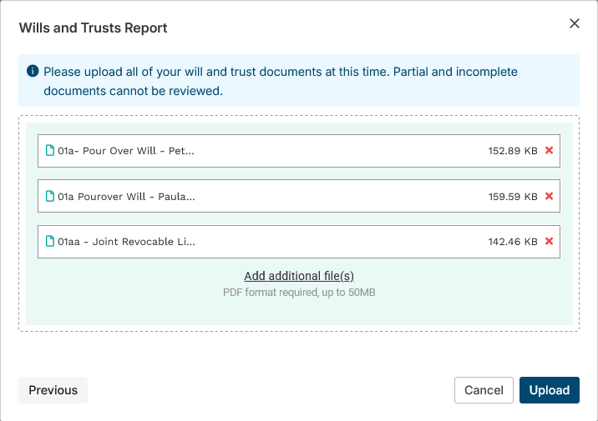
It’s important to note that each document needs to be separate, but you’ll want to include all documents in one upload. So, if you have two wills and a joint trust, there should be three separate documents in the upload section. Any other supporting documents should be added at this time as well.
Naming conventions used for your documents do not determine how the documents are actually treated. Our own internal logic is going to determine that the files are wills and trusts, whether codicils amend the will, which client signed the document, etc.
Names used for your documents do not determine how the documents are actually treated, but the names do show up on the report itself to list the documents that were reviewed. Because of this, you may want to update the file name before uploading. You can add and remove files as needed prior to being reviewed.
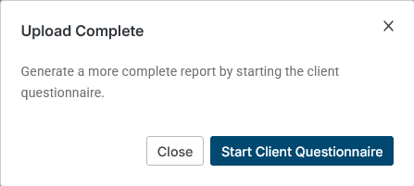
Click Upload, and you’ll see the message below once complete:
Uploading Health Care POAs and Advanced Directives
If you haven't already reviewed our KB article on which documents to upload, we highly recommend taking a look before continuing.
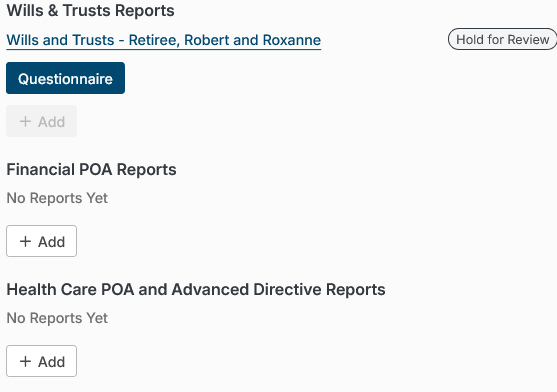
From the Estate Review page, click the "+ Add" button under the Health Care POA and Advanced Directive Reports header
Incapacity planning documents are summarized at the individual level. When uploading, be sure to select the correct household member within the Health Care Directive module’s upload modal.
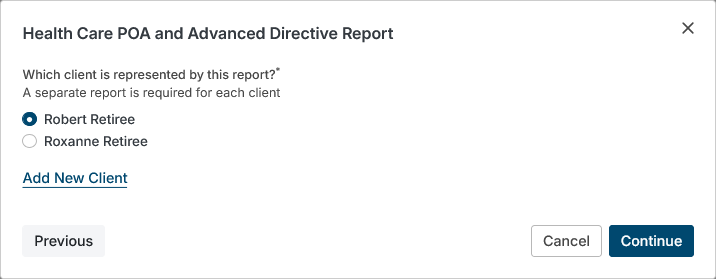
Verify that the names of the uploaded documents are the names you'd like to see on the report.
Upload all healthcare incapacity planning documents that the individual has (ex., Living Will and Medical Power of Attorney) and click Upload.
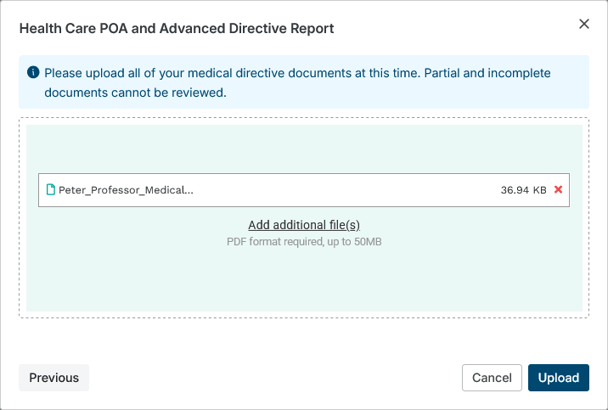
Names used for your documents do not determine how the documents are actually treated, but the names do show up on the report itself to list the documents that were reviewed. Because of this, you may want to update the file name before uploading. You can add and remove files as needed prior to being reviewed.
Uploading Financial POAs
If you haven't already reviewed our KB article on which documents to upload, we highly recommend taking a look before continuing.
To upload Financial POAs, click the "+ Add" button under the Financial POA Reports header.
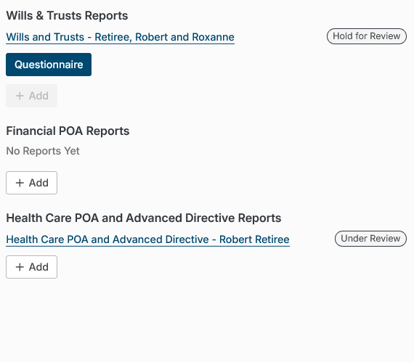
Incapacity planning documents are summarized at the individual level. When uploading, be sure to select the correct household member within the Financial POA module’s upload modal
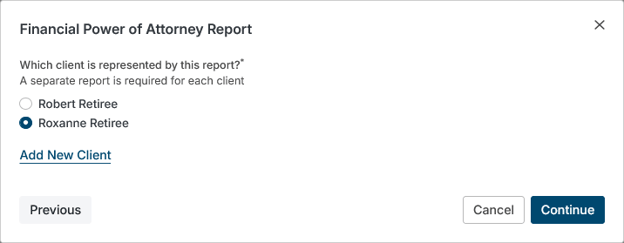
Upload all financial decision-making documents that the individual has, and click Upload.
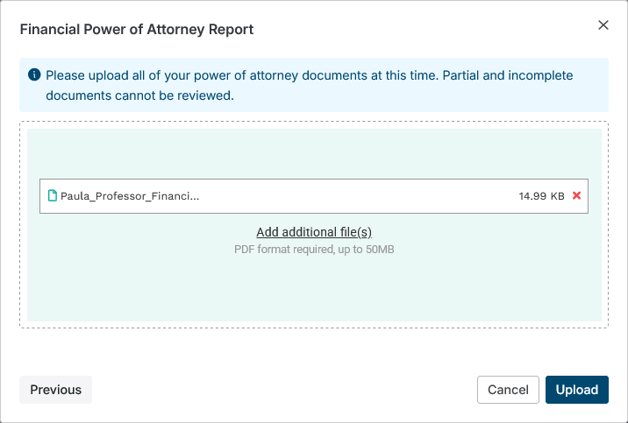
Names used for your documents do not determine how the documents are actually treated, but the names do show up on the report itself to list the documents that were reviewed. Because of this, you may want to update the file name before uploading. You can add and remove files as needed prior to being reviewed.
Additional Upload Information
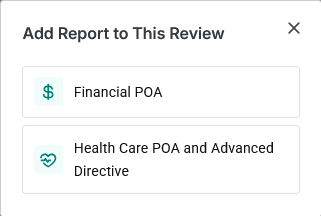
In some cases, an Estate Review may start with a Wills and Trusts Report, with POA information added at a later date. To add a report to an existing Estate Review, after clicking Estate Reviews in the left-hand navigation column in the client's household, click the "Add Report to this Review" section of the existing review.

The subsequent screen will ask which report should be added. Upon selecting a report to add, the upload instructions described above for that particular report will appear.