![Holistiplan Logo (800x200 px).webp]](https://help.holistiplan.com/hs-fs/hubfs/Holistiplan%20Logo%20(800x200%20px).webp?width=160&height=40&name=Holistiplan%20Logo%20(800x200%20px).webp)
To use this tool, hover over the column headers between the scenarios that are to be compared, and a small green triangle will appear. This delta symbol will allow users to see the changes between two scenarios.
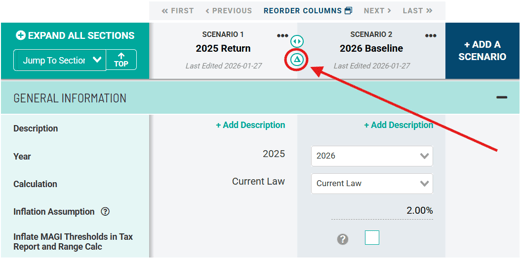
Clicking on the triangle will expand a new intermediary column that quantifies the change in any row that has different information between the two scenarios. Items in the right-hand column that are larger than the left-hand column will display as positive and will be in green in the change column, while items that are lower will display as negative in red font.
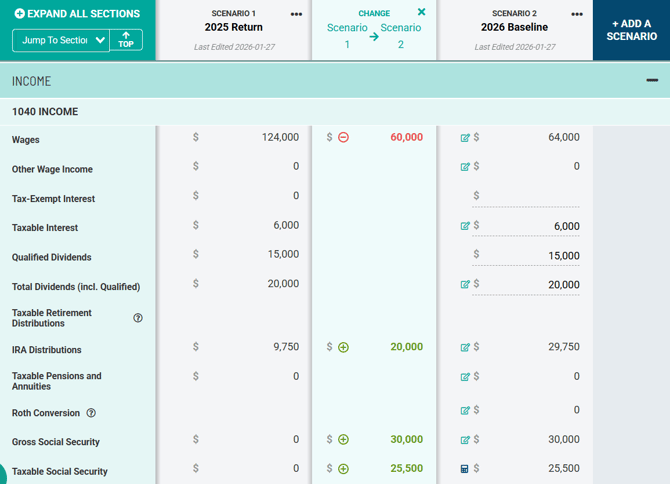
The change column will count as one of the four available scenarios when attempting to print out of Scenario Analysis.
Users can use the change illustration for future scenarios, or to illustrate changes between tax returns for previous years that have already been loaded into Holistiplan. To accomplish the latter, simply add scenarios that correspond to uploaded returns and click the change icon!