![Holistiplan Logo (800x200 px).webp]](https://help.holistiplan.com/hs-fs/hubfs/Holistiplan%20Logo%20(800x200%20px).webp?width=160&height=40&name=Holistiplan%20Logo%20(800x200%20px).webp)
Firm admins can customize the Tax Report's Key Figures by navigating to Settings > Features & Tools > Tax.
Scroll to the Key Figures section. Then drag and drop from the "Available Fields" into the columns to the right to include, remove, and reorder the Key Figures fields as desired!
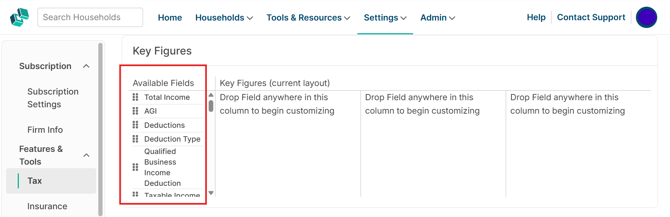
The Tax Report will only populate the Key Figures that are selected and placed in the Key Figures (Current Layout) section.
If the screen is blank, the Tax Report will display Holistiplan's default Key Figures. Upon customizing the Key Figures section, the Tax Report will only display those specific fields added to the Key Figures (Current Layout) section.
As an example, with the Key Figures customized per the layout below, the Tax Report Key Figures will only show the following fields: Total Income, AGI, Deductions, Total Tax, and Filing Status.
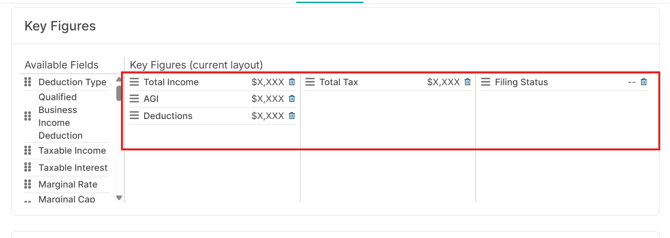
To return to the default layout, click the trashcan icon next to each figure in the customized layout column(s). Once all fields are removed and the columns are blank, the Tax Report will return to the default setting.