![Holistiplan Logo (800x200 px).webp]](https://help.holistiplan.com/hs-fs/hubfs/Holistiplan%20Logo%20(800x200%20px).webp?width=160&height=40&name=Holistiplan%20Logo%20(800x200%20px).webp)
Getting started with Multi-Factor Authentication for the first time? Here's an MFA setup walkthrough video from Roger Pine, our CEO!
Enabling MFA
Only Firm Admins have the ability to enable the MFA feature. To turn on MFA, go to Settings > Security and click the Enable MFA button.
Token Reset
If a previously established token no longer works or you have switched to a new mobile device, delete the previous Holistiplan profile within the MFA app and have your Firm Admin reset your token and try the steps again.
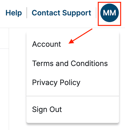
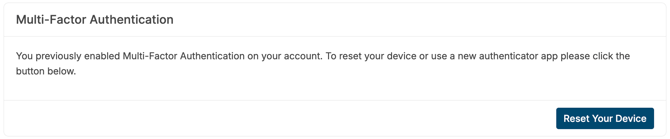
If you plan to get a new phone, have reset your token before you switch devices by going to your Account screen and clicking Reset your Device
Recommended Authenticator Apps
Holistiplan suggests using either Google Authenticator or Twilio Authy. Steps to set up each are below. Any app that provides a 6-digit code can be used for MFA with Holistiplan, though!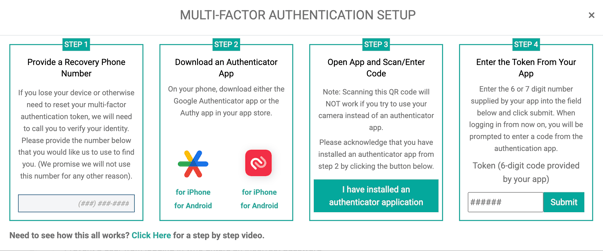
Google Authenticator
Step 2
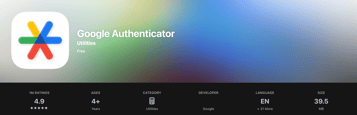
Download Google Authenticator from the App Store or Google Play Store, as appropriate
Step 3
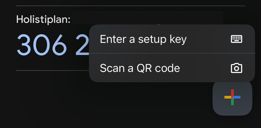
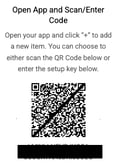
Scan the QR code on Holistiplan’s login page provided for you specifically (do not use this example)
Step 4
Enter the token from the MFA App in the box in Step 4

Twilio Authy
Step 2
Download the Authy app from your app store
Step 3

Click on Add Account in the bottom left corner and scan the QR code on Holistiplan’s login page provided for you specifically

Step 4
Enter the token shown on the app in the box on Holistiplan’s site:
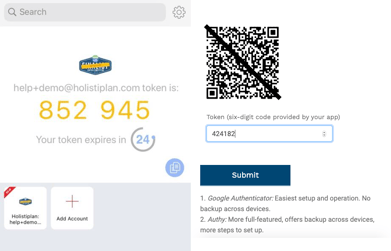
Once theMFA app is established, the login screen will lask for the newest token every login after you’ve entered your username and password: