![Holistiplan Logo (800x200 px).webp]](https://help.holistiplan.com/hs-fs/hubfs/Holistiplan%20Logo%20(800x200%20px).webp?width=160&height=40&name=Holistiplan%20Logo%20(800x200%20px).webp)
To see Holistiplan's Insurance Risk Management Module in action, please watch the video below featuring Ben Birken, Holistiplan's Vice-President of Customer Success and Engagement. We've also provided detailed instructions on how to access and use the tool in the text following the video.
Enabling the Tool
To enable the Insurance Risk Management feature, a Firm Admin can navigate to Settings > Features & Tools > P&C Insurance and toggle on "Property Casualty".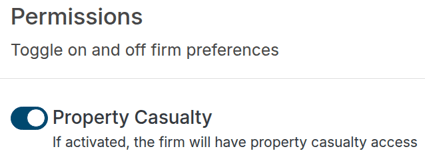
Creating a New Review
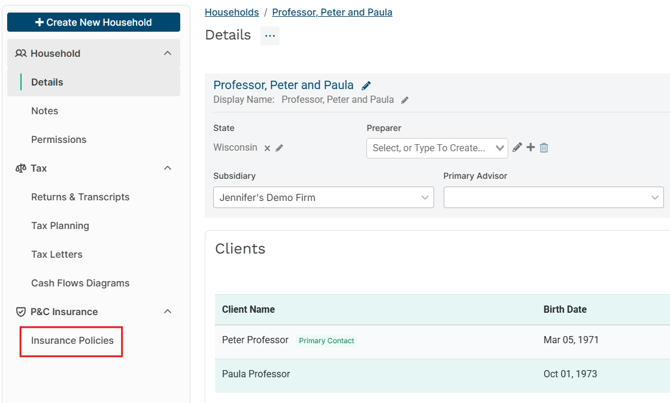
To start using the feature, navigate to any client's household. From within their household page, select Insurance Policies below P&C Insurance in the left navigation menu.
Create an insurance review for this client by clicking on the Create Report button. If you have not already completed an insurance review, you will not see information for "Coverage Summary" or under "Reports".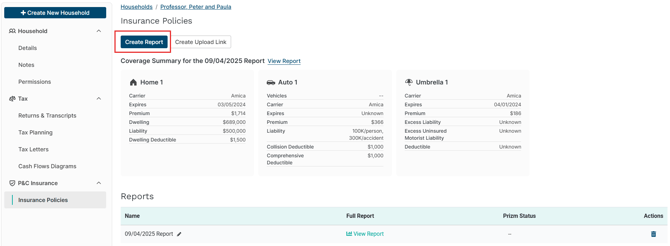
Upon creation, the review will automatically apply the current date to indicate the date in which the review was created. You may adjust this date freely.
Click "Confirm" to begin uploading insurance documents. You can edit the name of your insurance review once created by clicking the pencil icon next to that review on the P&C Insurance > Reviews screen.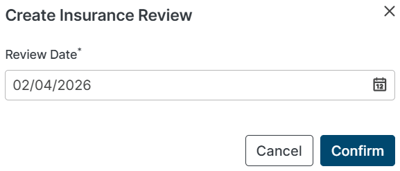
Building a Review
Entering a new insurance review will direct the user to begin uploading insurance policy declarations.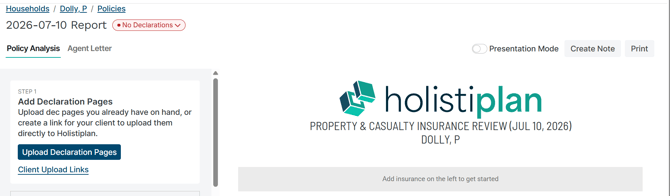
Insurance policies are listed on the left panel of the Insurance Report screen. As users upload policy documents and those uploads are processed, the Report will populate with information in the report preview on the right panel of the report screen.
To add a policy document, click on "Click Here" or drag and drop documents into the respective sections. Use this method within this modal to upload multiple policies’ declarations pages at once.
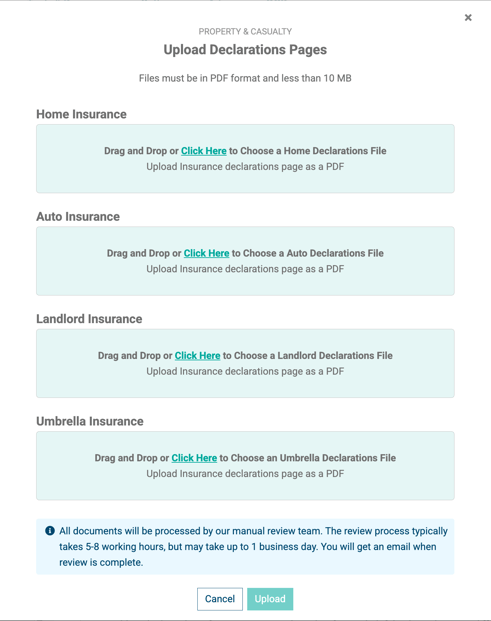
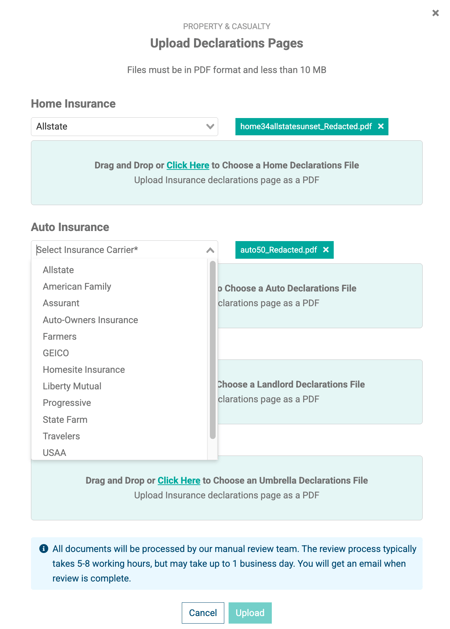
NOTE: Be sure to select the appropriate insurance carrier from the dropdown menu, as a carrier must be selected before the upload button can be used to submit the policies to Holistiplan.
Once a policy is successfully attached, you'll be prompted to select a carrier for that policy. Click "Upload" after selecting the appropriate insurance carriers to upload all your insurance documents to Holistiplan.
Manual Review
Our OCR (Optical Character Recognition) software will read in your insurance document(s), and any necessary manual reviews will be completed by our Support Team to complete processing of the uploaded document(s).
Currently, all documents will get automatically flagged for a manual review by Holistiplan staff. This helps us train the OCR model so that we can better extract data from these documents in the future. Users will get an email when that review process is complete, and the document is ready for you to view.
Review Statuses
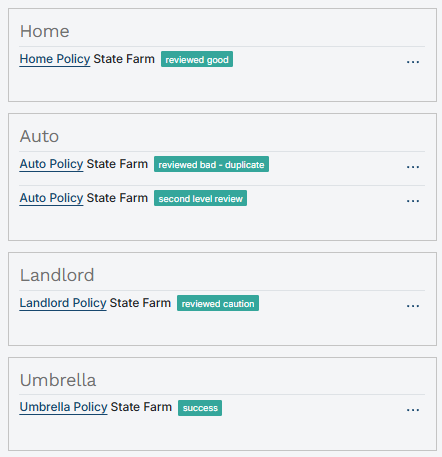
After uploading, you will see a status tag next to each document in the insurance report (see examples below).
"success": The document was processed automatically by OCR and passed our quality checks without needing manual review. It is ready in the report.
"hold_for_review": The document is currently in the manual review process.
"second_level_review": The document is in its second stage of review to make sure you receive a complete report.
"reviewed_good": The document has completed manual review and is ready in the report.
"reviewed_caution": The document has been reviewed and is in the report, but it appears to be a binder or quote rather than an issued declarations page. Coverage shown may change once the policy is issued. Upload the final declarations page when it is available.
"reviewed_bad": The upload was unsuccessful. You will receive an email from Holistiplan explaining the issue (for example, "reviewed bad - duplicate").
"advisor_updated": An advisor has updated the policy by adding details through the Personal Risk Profile. (See Policy Controls below.)
Once your uploaded policy documents are successfully processed, the document is now part of your Insurance Review and its information will populate into the report preview panel on the right side of your screen.
Your full Insurance Review will be populated as information is added, and that finished product will look like the example below.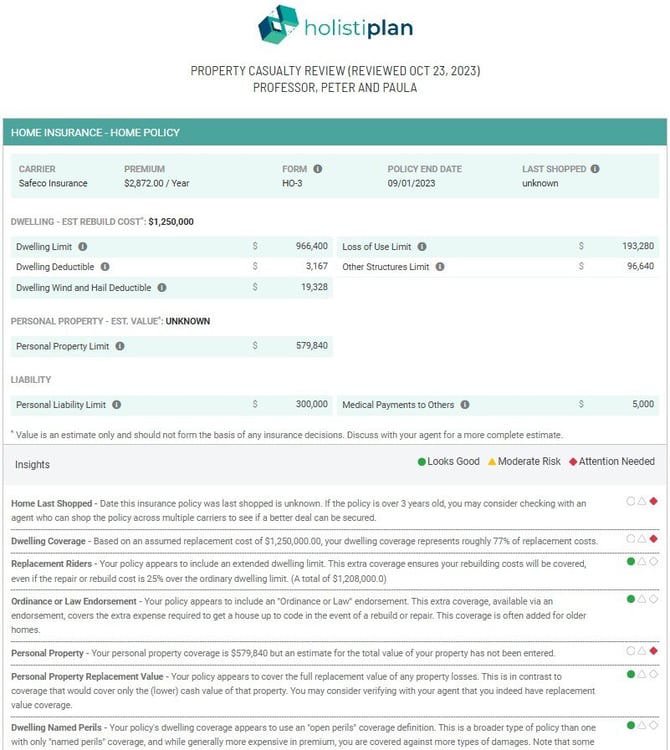
Policy Controls
Add declarations pages. Click Upload Declaration Pages to upload dec pages, or Client Upload Links to create a link the client can use to upload them directly to Holistiplan.
Add what the dec pages don't show. Declarations pages confirm what's covered, but coverage and risk aren't the same thing. Click Start Personal Risk Profile to add lifestyle, home, auto, landlord, and umbrella details that help find gaps that could leave a client's assets exposed.
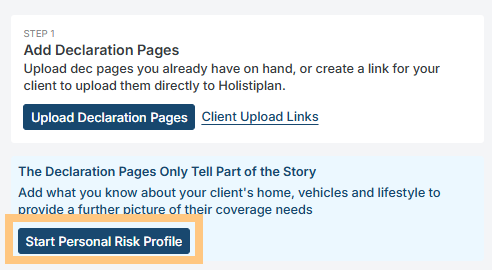
Click Start:
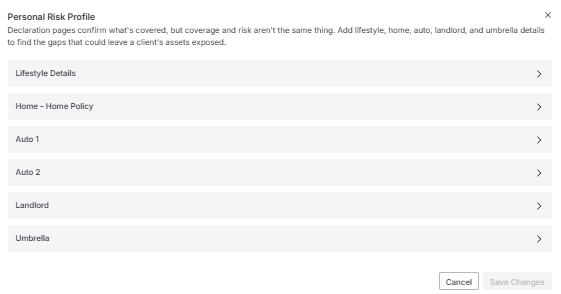
In the Personal Risk Profile, open each section and enter known information about the client:
- Lifestyle Details: Home, Auto, and Umbrella risk factors (e.g., business use of home, household employees, rideshare driving, nonprofit board service).
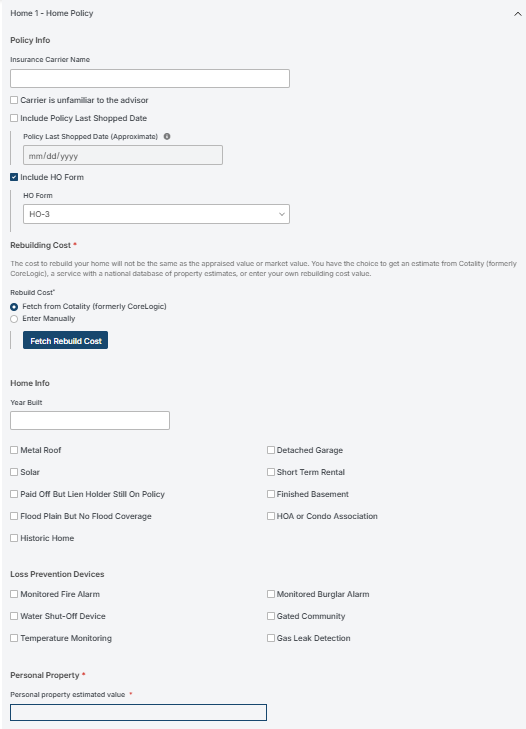
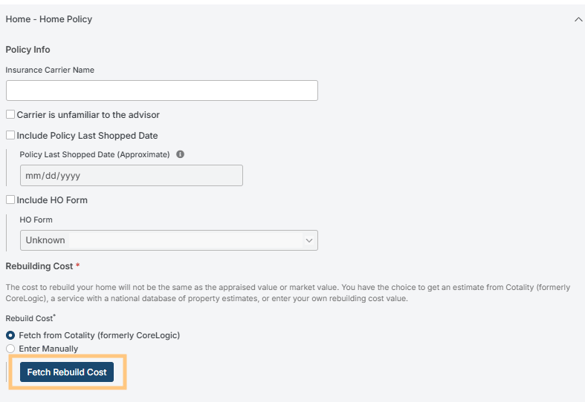
- Home: Policy info, HO form, rebuilding cost, home info, loss prevention devices, and personal property estimated value.
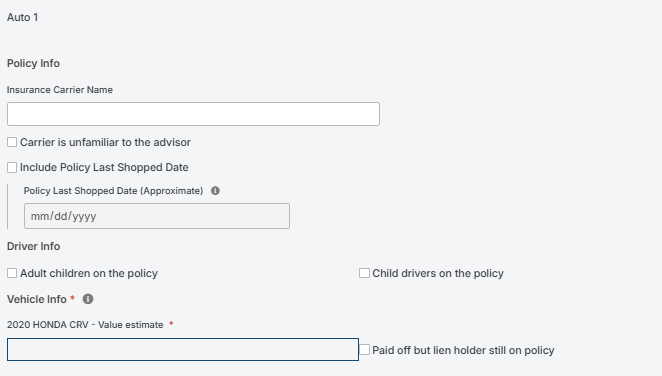
- Auto (one section per policy): Policy info, driver info, and a value estimate for each vehicle.
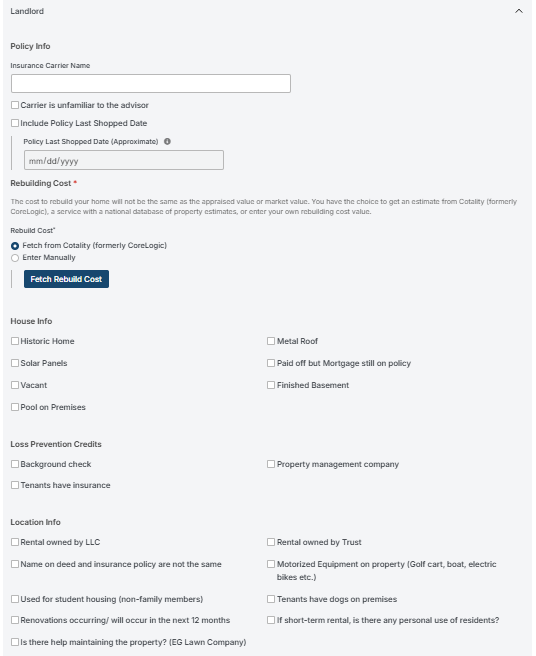
- Landlord: Policy info, rebuilding cost, house info, loss prevention credits, and location information.
- Umbrella: Policy info and Estimated At Risk Value.
Click Save Changes when finished. Once data is saved, the button changes to Update Personal Risk Profile.
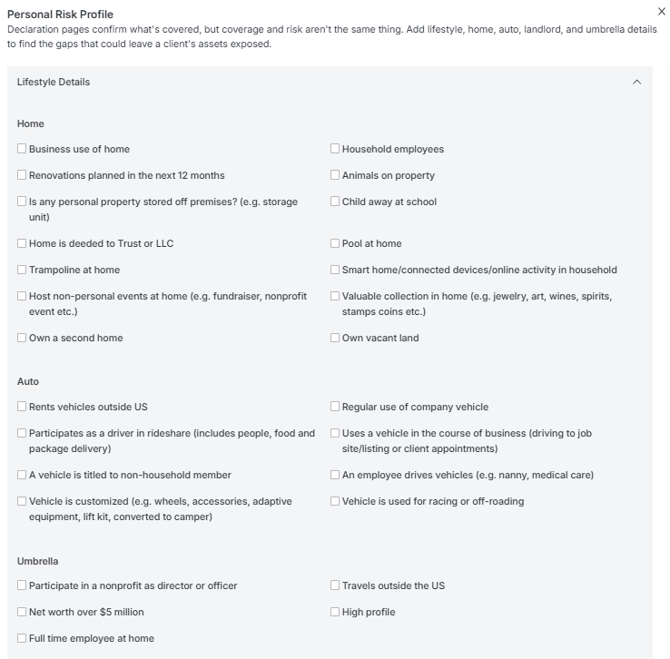
Examples of home, auto, umbrella, and landlord policies:
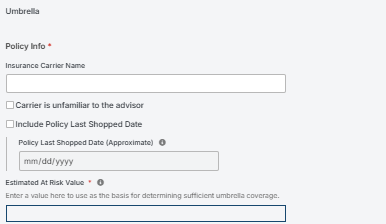
The "Estimated At Risk Value" field indicates the value of assets subject to loss in a liability claim, acknowledging that some assets (e.g., 401k, primary residence) may not be subject to creditors. In that case, those protected assets would not be "at risk" and could be subtracted from the total of the client's personal assets.
For Home and Landlord policy rebuild costs, choose Fetch from Cotality (formerly CoreLogic) to pull an estimate from a national database of property estimates, or Enter Manually to use your own value.
Once the report is built, print the agent letter and provide both the report and letter to the client to share with the insurance agent!
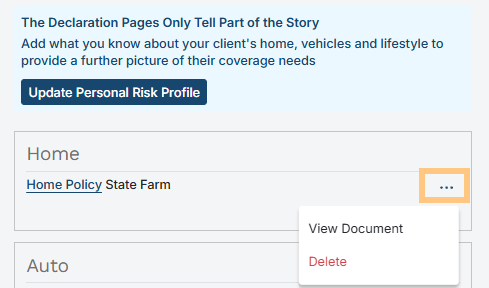
Document options. Click the "..." menu next to any policy:
- View Document opens the OCR screen showing the uploaded declarations page.
- Delete removes the document from the review.
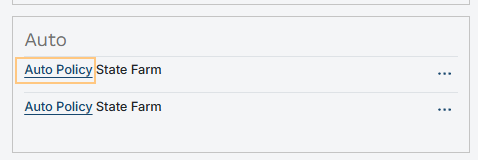
Jump to a policy. Click the policy name link (e.g., "Auto Policy") to go straight to that declaration within the report.
Note: For navigating back to the Insurance Policies page within the client household, please select the Policies option located on the top of the insurance report like below:

For navigating back to the client household Details page, please select the client name on the top of the insurance report like below:

From the Insurance Reports table. You can also open the Personal Risk Profile from the Insurance Policies tab. In the Insurance Reports table, click Start (no data yet) or Update (data already entered) in the Personal Risk Profile column.
