![Holistiplan Logo (800x200 px).webp]](https://help.holistiplan.com/hs-fs/hubfs/Holistiplan%20Logo%20(800x200%20px).webp?width=160&height=40&name=Holistiplan%20Logo%20(800x200%20px).webp)
Once the scan is complete, users can push the results directly into Income Annualizer to project annual wages, deductions, and withholdings.
The Pay Stub Scanner is automatically enabled for most firms - reach out to the firm admin on file if the Pay Stub Scanner isn't showing up in the Income Annualizer. To turn off the scanner, a firm admin can go to Settings > Features & Tools > Tax > Permissions.
|
Best for |
W-2 employees |
|
Located in |
Scenario Analysis → Wages → Income Annualizer |
|
Supported files |
PDF, JPG, PNG |
|
File size limit |
10 MB |
|
Multiple jobs |
Supported (one scan per job) |
|
Editable after scan |
Yes |
|
File retention |
Uploaded files are deleted after processing |
For the best scan results:
- Use a clear, legible pay stub
- Avoid blurry or heavily cropped screenshots
- Remove password protection from PDFs
- Confirm the correct pay frequency before scanning
- Ensure the file is under 10 MB
Important: Always review extracted results carefully before pushing them into Income Annualizer.
Using the Pay Stub Scanner
In Scenario Analysis, go to the Wages worksheet and select Use Income Annualizer.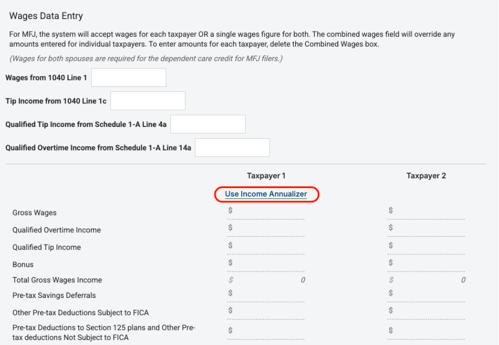
I
Step 1: Open Pay Stub Scanner
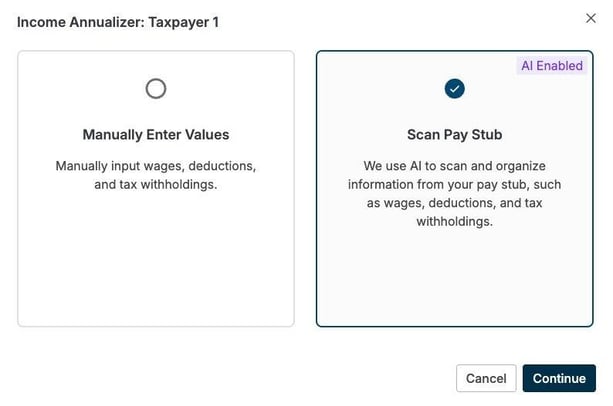
When adding income for a taxpayer, select Scan Pay Stub, then click Continue
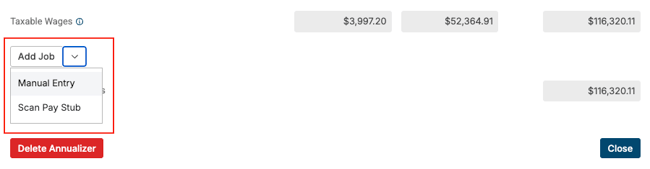
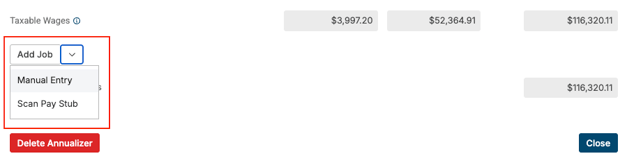
If the scenario in question already has income populated in the Income Annualizer, scroll down to Add Job and select Scan Pay Stub.
Step 2: Select the Pay Frequency
Choose the client's pay frequency from the dropdown menu. Supported options include Weekly, Biweekly, Semi-Monthly, Monthly, and more.
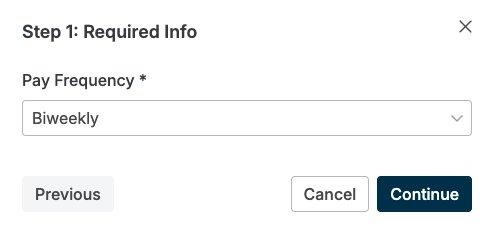
The selected pay frequency determines the remaining pay periods, annualized wage calculations, and withholding projections.
Step 3: Upload the Pay Stub
Upload the client's pay stub by:
- Dragging the file into the upload area, or
- Clicking Select Pay Stub
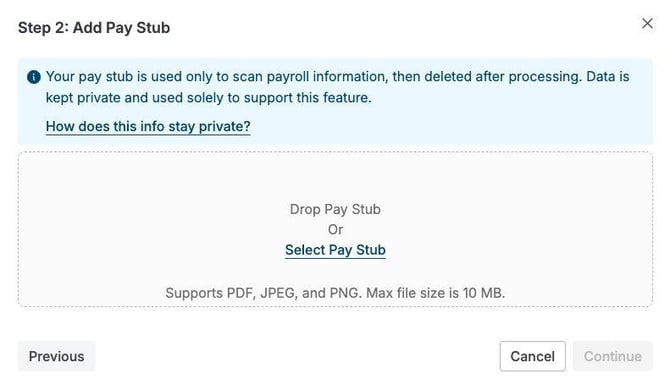
Supported file types: PDF, JPEG/JPG, PNG. Maximum file size: 10 MB. Password-protected files are not supported.
Once uploaded, click Continue.
Uploaded files are used only for payroll extraction and are deleted after processing. More information on the privacy of this feature can be found in our article here.
Step 4: AI Processing
Holistiplan scans the uploaded pay stub and automatically extracts and categorizes:
- Wages
- Tax withholdings
- Pre-tax deductions
- Post-tax deductions
Processing typically completes in less than one minute. No action is required during this step. The following screen will display as the pay stub is processed.

Step 5: Review Extracted Results
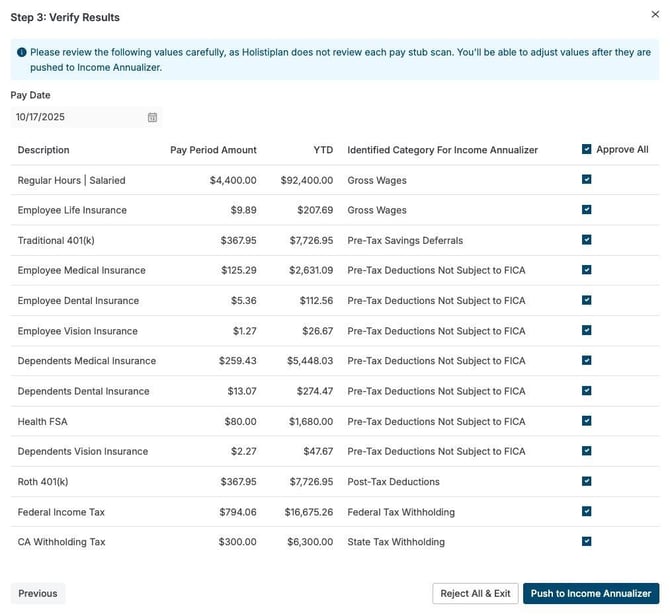
Before pushing results into the Income Annualizer, review the extracted values carefully.
The review table displays:
- Description
- Pay Period Amount
- Year-to-Date (YTD)
- Identified Category
Be sure to verify the following before approving:
- Gross wages
- Federal tax withholding
- 401(k) contributions
- HSA/FSA deductions
- Roth vs. pre-tax classifications
- Pay date and YTD amounts
Approval options:
- Approve All - enabled by default; pushes all extracted line items into Income Annualizer
- Uncheck Individual Lines - excludes selected items from import
- Reject All & Exit - cancels the scan and returns to the method selection screen
When the results look correct, click Push to Income Annualizer.
Reviewing Populated Income Annualizer Fields
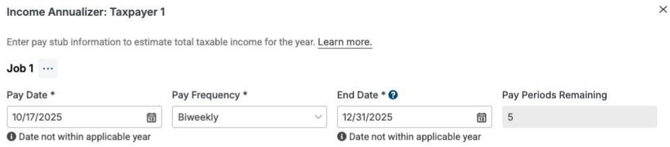
After pushing the scan results, Income Annualizer automatically populates the following fields for the selected job.
The following fields populate automatically:
- Pay Date
- Pay Frequency
- End Date
- Pay Periods Remaining
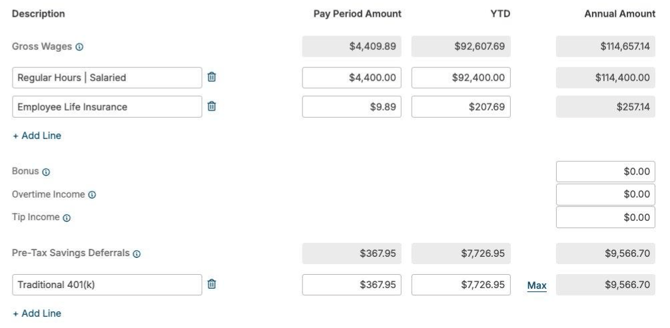
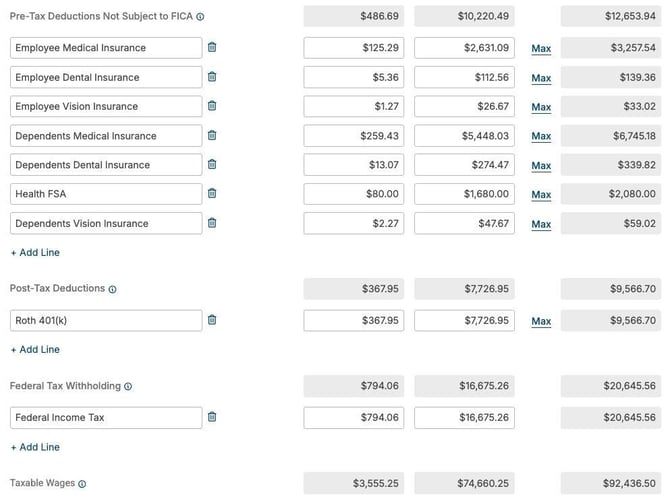
Income and savings items may include Gross Wages, 401(k) contributions, and other pre-tax savings deferrals. Each line item displays the Pay Period Amount, YTD Amount, and Annualized Amount. All imported values remain fully editable.
Deductions and Withholding
Income Annualizer also categorizes pre-tax deductions, post-tax deductions, and federal withholding. Examples include medical insurance, dental insurance, vision coverage, dependent care deductions, and Roth 401(k) contributions. FICA-related treatment is applied automatically to help ensure accurate wage calculations.
Annualized Taxable Wages
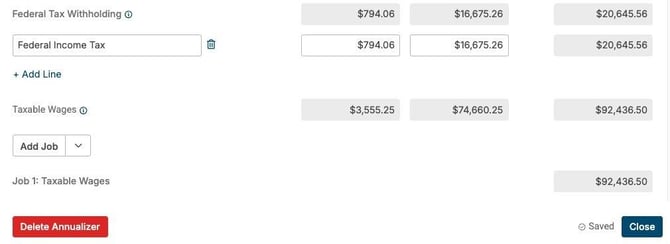
At the bottom of Income Annualizer, Holistiplan calculates annual taxable wages for the job automatically. From here, users can add another employer using Add Job, edit imported values, or close Income Annualizer and return to Scenario Analysis.
Multiple Jobs and Special Cases
Multiple W-2 Jobs
For clients with multiple employers, complete one scan per pay stub and use Add Job for each additional employer. Each job maintains its own pay frequency, pay dates, annualized calculations, deductions, and withholding.
Variable Compensation
Bonus, overtime, and tip income may import differently depending on the payroll format. Review imported values carefully and make manual adjustments if needed.
Equity Compensation
Equity compensation is not supported through Pay Stub Scanner. Continue using existing workflows for RSUs, ESPPs, ISO exercises, and NQSO exercises. More information on equity compensation can be found in our article here.
Troubleshooting
The scan failed
- Confirm the file is under 10 MB
- Remove password protection from the PDF
- Upload a clearer version of the pay stub
- Ensure the file format is PDF, JPG, or PNG
Values look incorrect
Review the selected pay frequency, pay date, YTD values, and deduction classifications. Users can manually edit any imported value before or after pushing results into Income Annualizer.
Missing line items
Some payroll providers combine deductions into a single line item. If something is missing or categorized incorrectly, edit the imported values manually or add additional entries directly in Income Annualizer.
If problems persist, reach out to help@holistiplan.com or click on the Contact Support button at the top of the page in question.
Privacy and Security
Uploaded pay stubs are used only for payroll extraction during the scan process. Holistiplan does not store uploaded pay stubs in the client record after processing completes. More information on the privacy of this feature can be found in our article here.