![Holistiplan Logo (800x200 px).webp]](https://help.holistiplan.com/hs-fs/hubfs/Holistiplan%20Logo%20(800x200%20px).webp?width=160&height=40&name=Holistiplan%20Logo%20(800x200%20px).webp)
For advisors who want to take full advantage of Holistiplan by doing some planning for themselves, we've created the ability to create private households! This allows you to upload returns into one single, specifically designated, private household that non-admins cannot see.
Enable the Private Household feature (Firm Admin Only):
To be able to create private households, a Firm Admin needs to first enable the feature by navigating to Settings > Features & Tools > General.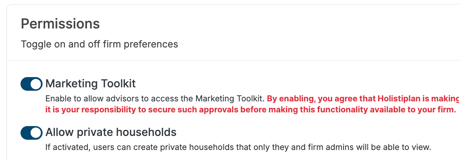
Then, toggle on the option to allow private households.
Create Private Household:
Once the feature is enabled, each user can create one private household each.
Please note that any user designated as a Firm Admin will be able to see all private households created for that Holistiplan account.
To create a private household, from the Households screen, click on the teal Add Household button at the top of the screen.
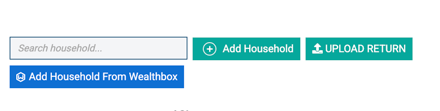
Complete the household information and check the "Private Household" checkbox above the Client 1 section.
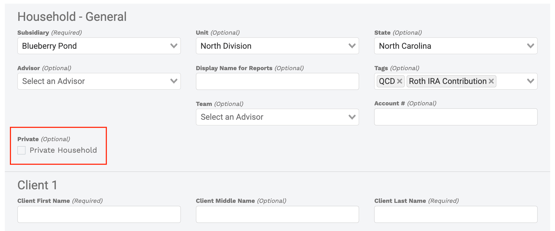
Once client details have been added, click on the Add button at the bottom to complete the creation of your new private household.
Private households will show a person + lock icon next to the household name on the All Households screen. Please note the following details about private households once they are created in the system:
- Firm admins will be able to see any private households.
- Each advisor can create 1 private household each.
- Creating a household as private can be done by the user, but Firm Admins can make a household public again.
Need to make an existing household private?
Households must be set up as private and cannot retroactively be made private once created.
- The workaround to this is to create a new private household and "merge" the 2 households together. Instructions for that process can be accessed in our article here.