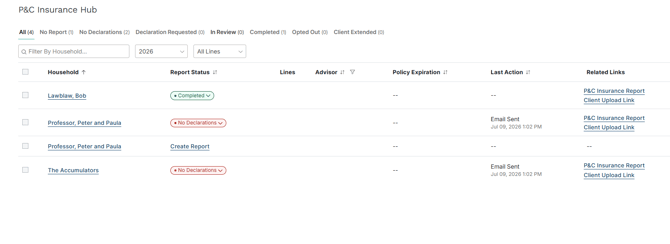
![Holistiplan Logo (800x200 px).webp]](https://help.holistiplan.com/hs-fs/hubfs/Holistiplan%20Logo%20(800x200%20px).webp?width=160&height=40&name=Holistiplan%20Logo%20(800x200%20px).webp)
To access the Hub, navigate to Tools & Resources > P&C Insurance Hub.
Contents:
Tracking Report Status
The Hub organizes households by Report Status using a tab bar at the top of the screen. Each tab shows a live count of matching households so users can see at a glance where things stand.
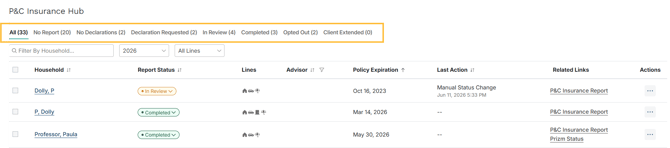
Available statuses are:
- No Report — No insurance report on file for the selected year
- No Declarations — A report exists, but no declaration documents have been received
- Declarations Requested — An upload link has been created or an email request has been sent to the client
- In Review — Declaration documents have been received and are under review
- Completed — The insurance review is complete for the year
- Opted Out — The client has opted out of the review process
- Client Extended — The review timeline has been extended for this household. To update a household's status, click the color-coded tag in the Report Status column and select a new status from the dropdown. Changes take effect immediately and update the tab counts in real time.
To update a household's status, click the color-coded tag in the Report Status column and select a new status from the dropdown. Changes take effect immediately and update the tab counts in real time.
Report Status is also visible and editable from within each household on the Insurance Policies overview, the Reports table, and the Report Detail View. Any change made in one place updates everywhere else instantly.
Filtering Your Book
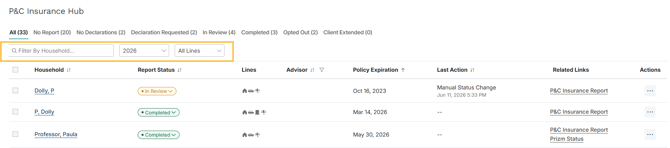
Use the filters above the table to focus on what matters most. All filters can be combined and persist when you switch tabs.
- Household search — Type any part of a household name to filter in real time
- Year dropdown — View reports for any year; defaults to the current year
- Lines of Business filter — Filter by No Home or No Umbrella to surface households missing a specific policy type
Actions
Row-level actions: Click the (···) menu on any row to request or upload documents. Options will vary based on the Report Status and whether email capabilities are enabled for your firm.
Before a report is created:
-
- Create Upload Link — Generate a unique client-facing link to collect declaration documents
- Upload Declarations — Upload declaration documents directly on behalf of the household
- Compose Email Request — Send a pre-populated declaration request email to the household.
- Reset Link Expiry Date — Extend the expiration date on an existing upload link
After the report is created, the following actions are available:
-
- Upload Declarations — Upload declaration documents directly on behalf of the household
- Reset Expiry Date — Extend the expiration date on the existing client upload link. Choose from 5, 15, 30, or 60 days from today (30 days is selected by default). If the client has an email in the system, it can be extended it to 180 days.
- Copy Client Upload Link — Copy the existing client upload link to your clipboard
- Resend 'Insurance Upload Link' Email — Resend the original declaration request email to the client. This workflow also allows users to extend the upload link expiry date as part of the process
- Send Request Follow-up Email — Send a follow-up email using a separate template with a different language from the initial outreach, so the client knows this is a reminder and not a new request
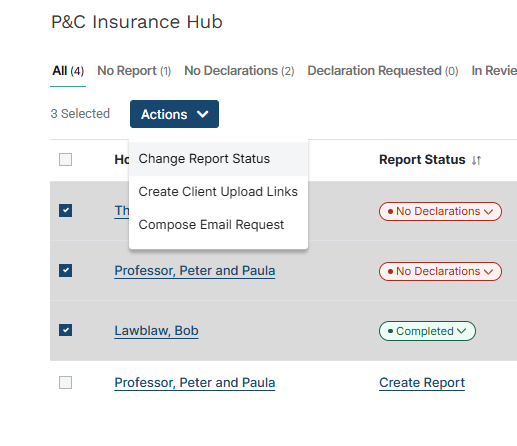
Bulk actions: Check the boxes next to multiple households to act on all of them at once. Select all using the header checkbox to select every visible row. Available bulk actions include:
- Change Report Status — Update the status for all selected households in one step
- This option only appears when ALL the households selected do not have a report status of “create report”; if any of the households selected have “create report” in the report status, you will not see this as an option
P&C Insurance Hub Columns
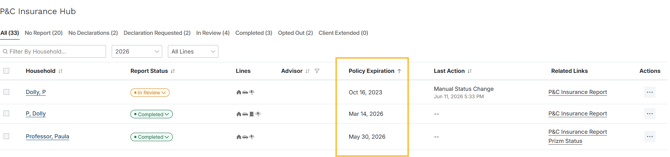
Policy Expiration — Displays the soonest upcoming expiration date across a household's active policies. Policies expiring within 30 days will also surface a notice on the Home screen dashboard
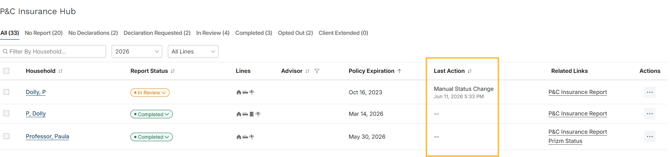
Last Action — Shows the most recent activity on a household's report and when it occurred, so users always know where things left off.
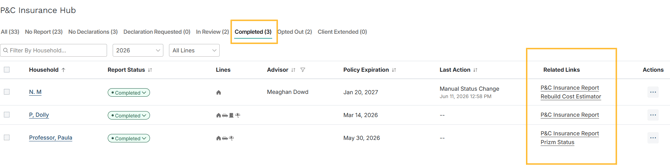
Related Links — A dynamic column that surfaces quick links based on where the household is in the process, including the P&C Insurance Report, Rebuild Cost Estimator, and Prizm Status, where applicable.
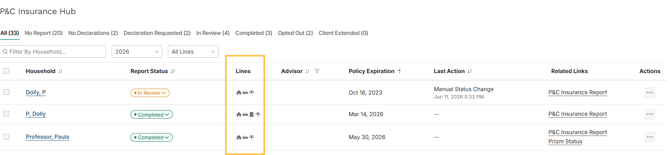
Lines of Business — Icons showing which policy types are on file for the household: Home, Auto, Landlord (door), and Umbrella.
Declaration Request Emails
Sending Declaration Request Emails
The email modal is available from both the bulk action bar and the row-level menu. It shows a list of recipients on the left and a pre-populated email on the right, drawn from the active email template on file. Review the email and click Send Emails to dispatch.
The email body cannot be edited from this screen. To customize the content, update your email template in settings before sending.
Individual Emails within the Hub
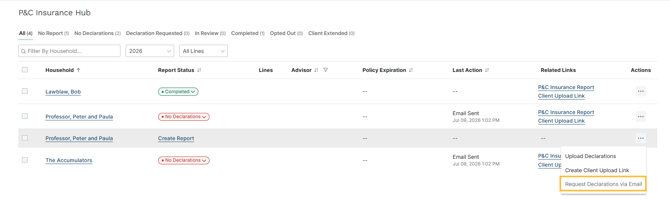
In the row-level actions menu, users can request declarations for a single household via email. If the option appears grayed out, no email address is on file for that household. Click the household name to open the household details page, add the email address, then return to the Hub to send the email. The email can also be sent directly from the household screen.
Following Up
Users can send follow-up outreach to an individual household in two ways:
1. Resend the original request
This resends the initial declaration request email and starts a new insurance report for the household.
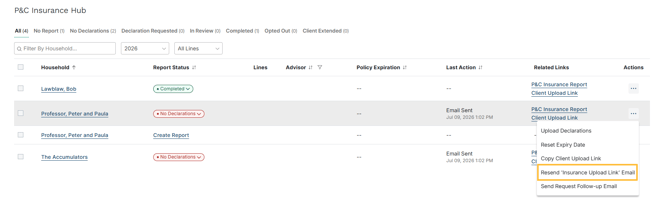
This workflow also allows users to extend the original client upload link as part of the process.
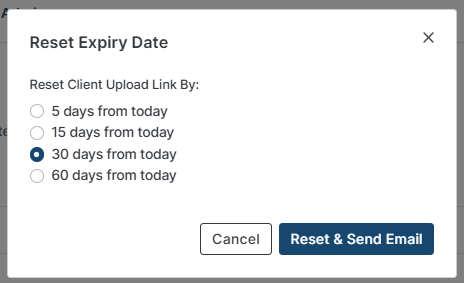
After sending, users will receive confirmation that the expiry date has been reset and the email has been queued for resend.
2. Send a follow-up request
This sends a separate email using a follow-up template with a different language than the initial outreach. When this option is selected, a modal will appear, requiring:
-
- Confirm the recipient email address
- Reset the client upload link expiry — choose from 5, 15, 30, or 60 days from today (30 days is selected by default)
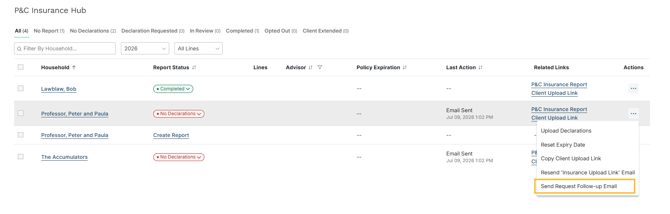
Click Next: Preview Email to review the follow-up email before sending. The follow-up template uses a different language than the initial request so the client knows this is a reminder, not a new ask.
Requesting Additional Declarations for Reviews in Process
Select Request Declarations via Email from the row-level (···) menu. A modal will appear with the following options:
To request declaration pages from a client, select Request Declarations via Email. A modal will appear with the following options:
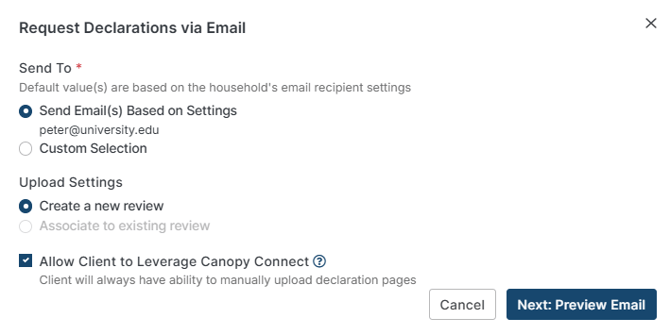
Send To
Default values are based on the household's email recipient settings (Step 4 in our Email Capabilities KB article).
- Send Email(s) Based on Settings — uses the email address already configured for the household
- Custom Selection — allows users to specify a different recipient
Upload Settings
- Create a new review — starts a fresh review for the household
- Associate to existing review — attaches any uploaded documents to a review already in progress. Select the existing review from the dropdown to confirm which report the documents should attach to
Allow Client to Leverage Canopy Connect
When enabled, the client will have the option to connect via Canopy Connect in addition to manually uploading declaration pages. The client will always have the ability to manually upload declaration pages regardless of this setting.
Click Next: Preview Email to review the email before sending. Once the details are confirmed, click Send Email to dispatch.
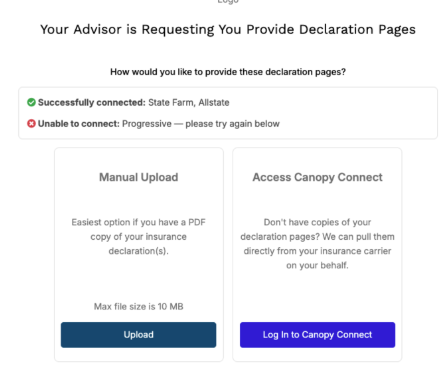
A note on Canopy Connect: If a client has policies with multiple insurance carriers, they can use a single link to connect to all of them at once. If an error occurs with one carrier during the document collection process, a follow-up email option will be available for a partial upload. This generates a new link tied to the existing report, and when the client opens it, they will see the specific carrier they need to reconnect to.
Bulk Emails from the Hub
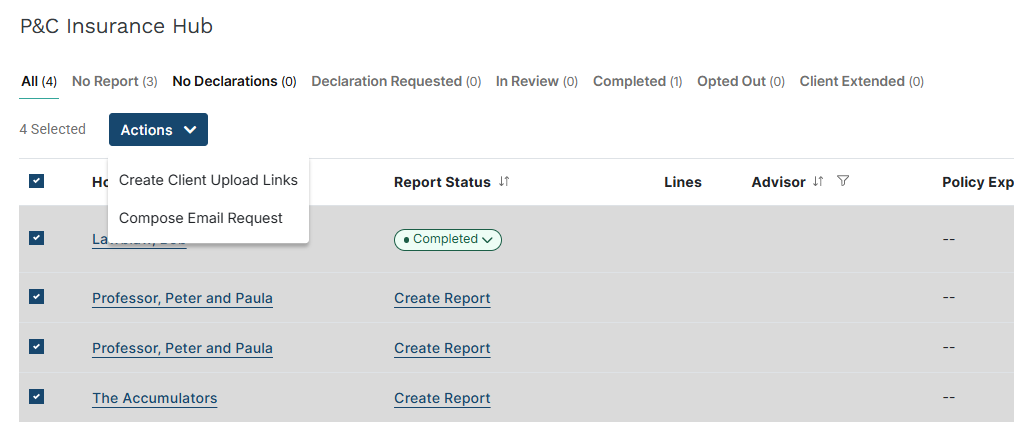
To send declaration request emails to multiple households at once, select the households using the checkboxes on the far left of the screen and choose Compose Email Request from the Actions dropdown.
If any selected households already have a review on file for the selected year, you will see a prompt confirming if this is correct:
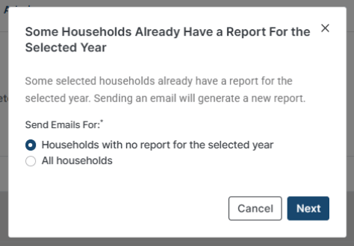
- Households with no report for the selected year — recommended in most cases to avoid generating duplicate reports
- All households — sends to everyone selected, including those with existing reports
If any selected households have no email address on file, a Households Skipped warning will appear listing those households by name.
Click the household link to open the details page in a new tab and add the missing email. Return to the Hub and reselect those households to include them in a future send. Click Continue to proceed and send to the remaining households.
Once the email has been sent, each household's Report Status updates from No Report to No Declarations, and the Last Action column reflects the date and time the email was sent.