![Holistiplan Logo (800x200 px).webp]](https://help.holistiplan.com/hs-fs/hubfs/Holistiplan%20Logo%20(800x200%20px).webp?width=160&height=40&name=Holistiplan%20Logo%20(800x200%20px).webp)
Each rental property or royalty is modeled as its own entity, allowing you to review the tax impact of individual activities while also seeing the combined results on the Summary tab.
Holistiplan automatically evaluates passive activity loss rules, Net Investment Income Tax (NIIT), and Qualified Business Income (QBI).
Getting Started
In Scenario Analysis, navigate to the Schedule E Income subsection within the Schedule 1 Income section and click the pencil icon in the Rentals and Royalties row to bring up the Rental/Royalties data entry worksheet.
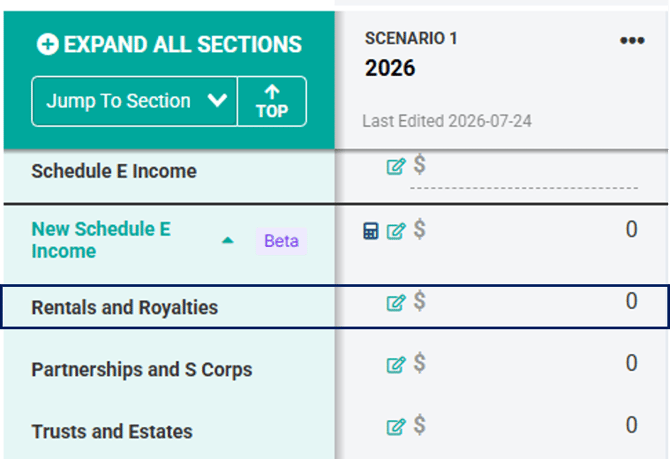
For convenience, scenarios generated by copying an uploaded return will automatically include the names of any rental properties from that original return.
Note that while the system will create entities for any listed item on the return, because Holistiplan does not read the individual income and expense items from Schedule E entities, that information will not port over to scenarios created by copying the return.
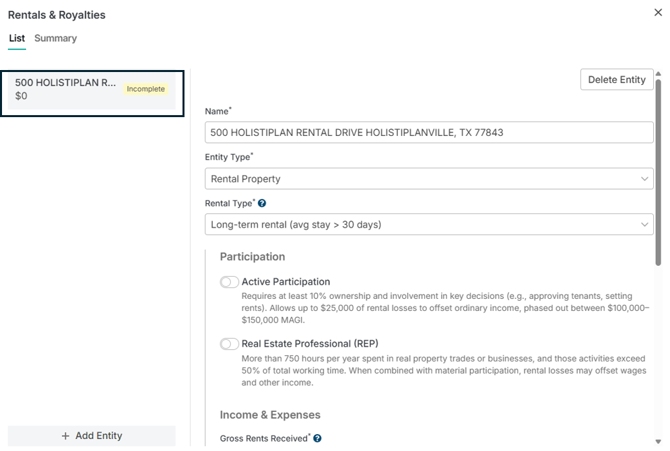
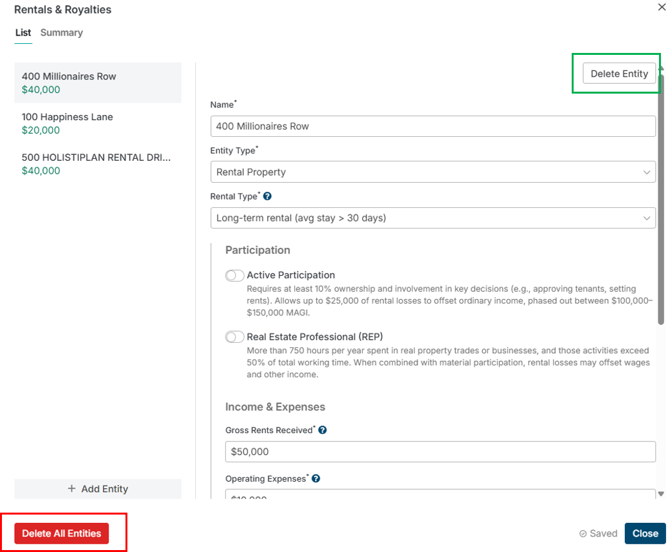
Alternatively, if you are working on a scenario with no previous rental activity, click the + Add Entity button to get started:
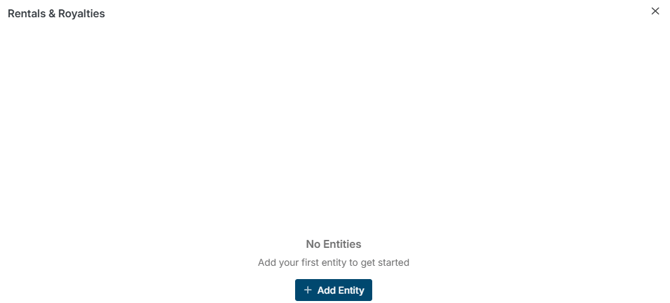
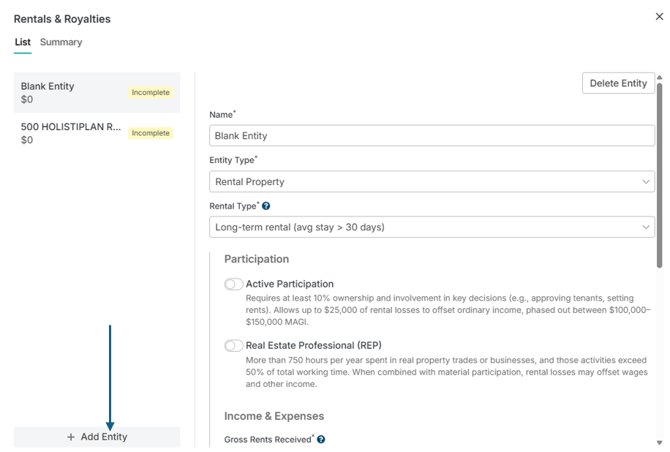
On the following screen, enter the name of the Entity Name (e.g., the address), indicate that it is a rental property in the Entity Type drop-down box, and select the Rental Type: long-term; short-term (8-30 days); short-term (7 days or less). You can also add new entities from this screen by clicking the + Add Entity button.
| Rental Type | When to Select This Option |
| Long-term Rental | Average stay is more than 30 days. Holistiplan uses your participation selections to determine whether losses remain passive, qualify for the special allowance, or become non-passive. |
|
Short-term Rental
(8–30 Days)
|
Average stay is between 8 and 30 days. Participation determines whether the activity is passive or non-passive. |
|
Short-term Rental (7 Days or Fewer) |
Average stay is seven days or fewer. These activities are generally not treated as rental activities under the passive activity rules. If substantial hotel-like services are provided, the activity is generally reported on Schedule C instead. |
To delete a rental entity, select the entity from the left-hand panel and click the Delete Entity button in the upper-right-hand corner of the worksheet. Alternatively, to delete all entities, click the red Delete All Entities button in the lower left-hand corner.
Participation
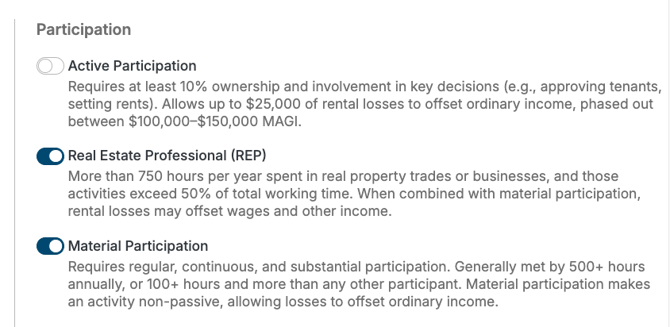
Use the options in the participation section to indicate the taxpayer’s level of involvement in the rental activity. The level of participation determines how rental losses are treated, as well as whether the rental income qualifies for the QBI deduction and/or is subject to Net Investment Income Tax (NIIT).
Holistiplan defaults both the Active Participation and Real Estate Professional (REP) toggles to no. If either applies, slide the toggle over. Indicating that the taxpayer is a Real Estate Professional brings up a third participation category for Material Participation. When combined, switching on both the REP and Material Participation toggles allows rental losses to potentially offset wages and other income.
Tip: Most rental properties remain passive. Only select Real Estate Professional if the taxpayer meets the IRS requirements as described in Publication 925.
Income & Expenses
Use this section to arrive at the net income or loss for the rental property.
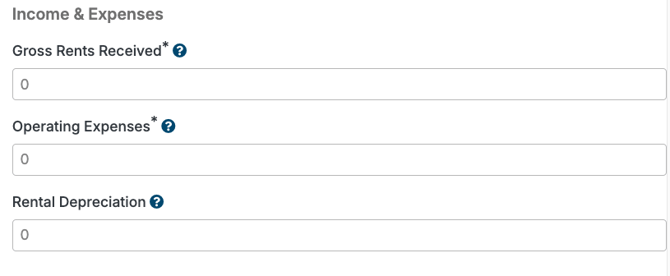
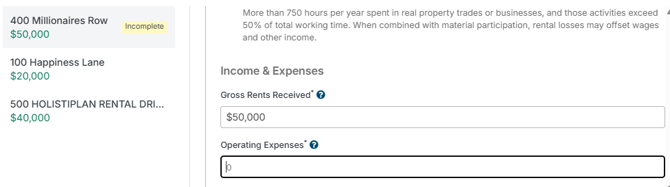
- Gross rents: total rental income received during the tax year before any deductions. Include all rents, advance rents, and payments for canceling a lease
- Operating expenses: Deductible expenses directly related to the rental activity, including property taxes, insurance, repairs, management fees, and utilities paid by the owner
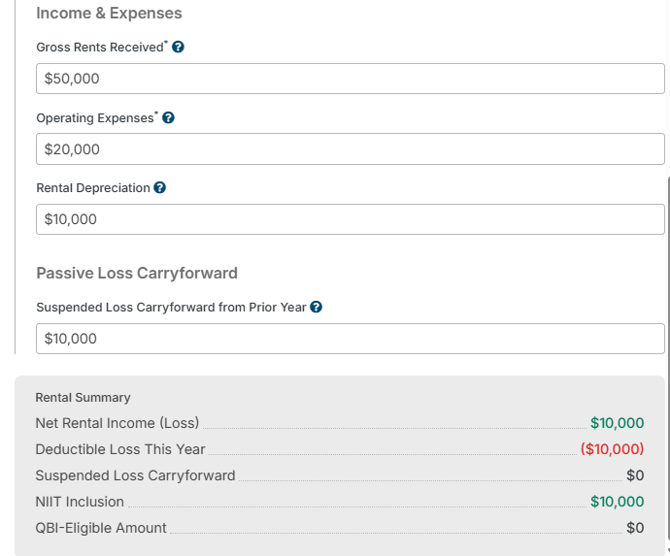
- Depreciation: Annual cost recovery deduction for the property
Holistiplan automatically calculates net rental income and updates the Summary card at the bottom of the entity screen.
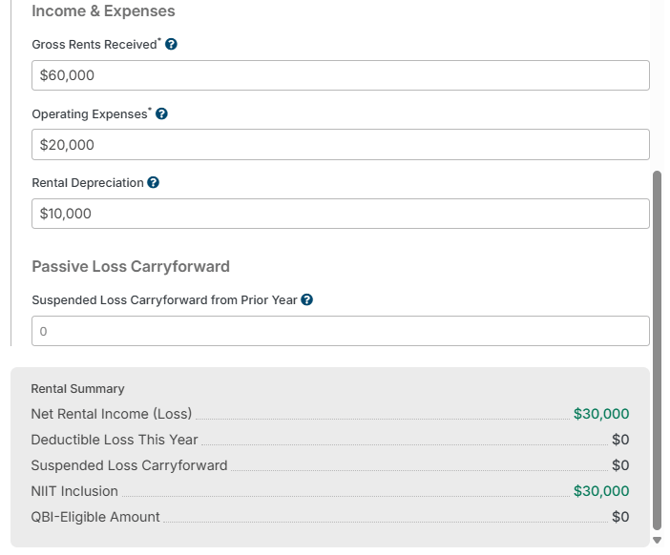
Note that if the rental property does not include both gross rents and operating expenses, the system will consider that rental entity to be incomplete. Incomplete rentals will not display on the Summary tab.
Passive Loss Carryforward
Enter any suspended passive losses carried forward from prior years. Holistiplan will combine this amount with any current-year income/losses when determining deductible losses for the current year and/or losses carried forward to the next year.
Qualified Business Income (QBI)
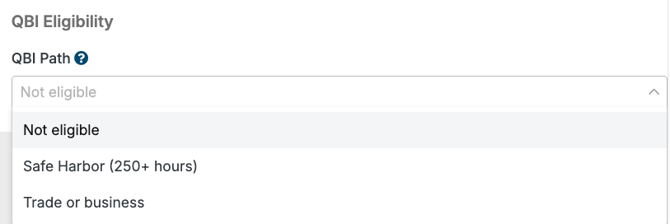
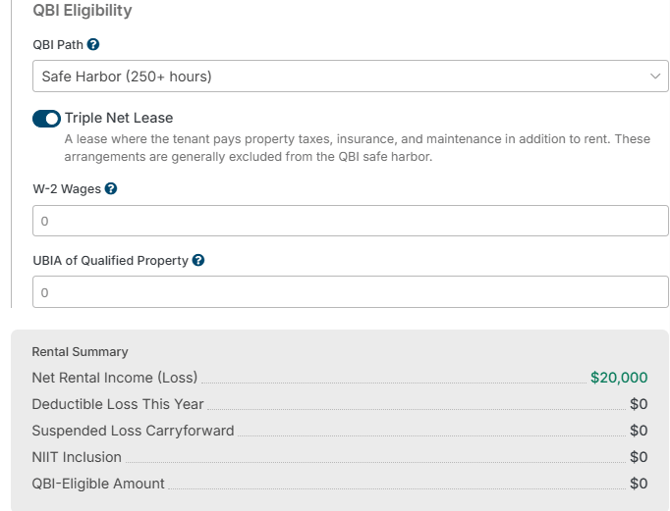
Depending on the selection in the Participation section, rental income may be eligible for the Qualified Business Income Deduction. Specifically, rental income may be eligible for this deduction if the taxpayer actively participates in the activity, or if a Real Estate Professional also materially participates. If either combination of participation is indicated, the QBI Eligibility drop-down menu will appear.
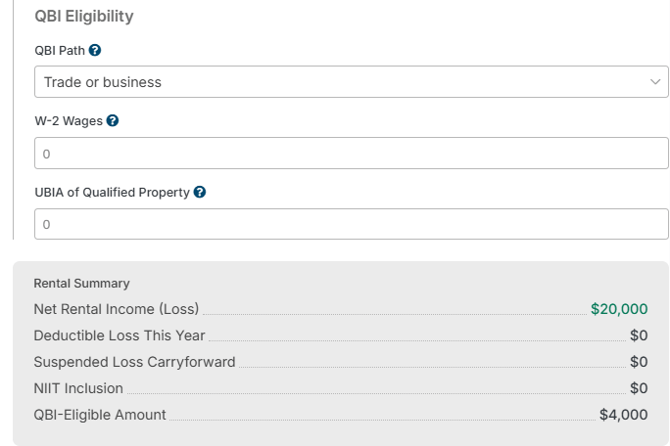
For either the Safe Harbor or Trade or Business path, users will be able to enter amounts of W-2 wages and the Unadjusted Basis Immediately After Acquisition (UBIA), if any, related to the rental property.
Specific to the Safe Harbor QBI path, users will be able to indicate if the rental activity reflects a Triple Net Lease, where the tenant pays property taxes, insurance, and maintenance in addition to rent. When this toggle is turned on, the income will not be included as part of the QBI deduction calculation.
Summary Tab
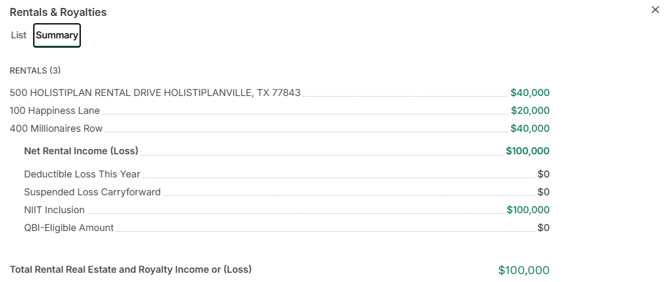
The Summary tab combines every rental property (and royalties, if any) into one view to allow for a review of net income/loss across all entered entities.
Frequently Asked Questions
Why does my rental loss show as $0?
Current-year losses are suspended when the activity is passive and doesn't qualify for an allowable deduction.
Why is my QBI amount $0?
This may occur if the rental isn't QBI eligible, the activity is passive or if the property is a Triple Net Lease.