![Holistiplan Logo (800x200 px).webp]](https://help.holistiplan.com/hs-fs/hubfs/Holistiplan%20Logo%20(800x200%20px).webp?width=160&height=40&name=Holistiplan%20Logo%20(800x200%20px).webp)
To begin, click Create Analysis from the Tax Planning tab of the Household page.
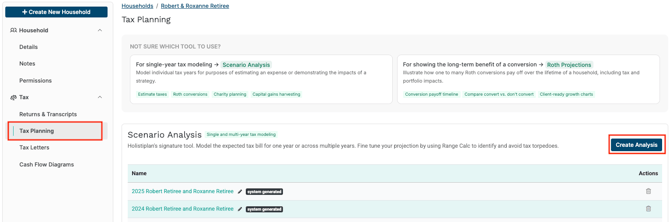
Creating a New Analysis
When selecting Create Analysis, users will be prompted to enter an Analysis Name and choose how to set up the analysis.
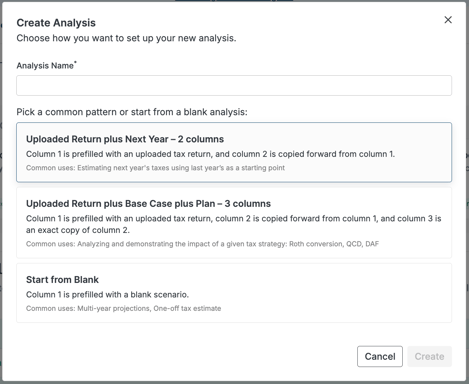
Available options include:
- Uploaded Return plus Next Year – 2 Columns
- Uploaded Return plus Base Case plus Plan – 3 Columns
- Start from Blank
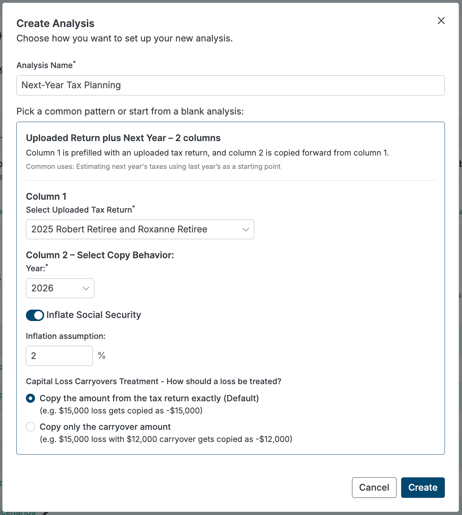
Uploaded Return plus Next Year – 2 Columns
Creates a two-scenario analysis:
|
Scenario |
Description |
|
Scenario 1 |
Current uploaded tax return |
|
Scenario 2 |
Base Case scenario copied from Scenario 1 |
Common Uses
- Estimating next year's tax liability
- Projecting income changes
- Annual tax planning
Uploaded Return plus Base Case plus Plan – 3 Columns
Creates a three-scenario analysis:
|
Scenario |
Description |
|
Scenario 1 |
Uploaded tax return |
|
Scenario 2 |
Base Case scenario copied from Scenario 1 |
|
Scenario 3 |
Plan scenario copied from Scenario 2 |
Common Uses
- Roth conversion analysis
- Qualified Charitable Distribution (QCD) planning
- Donor-Advised Fund (DAF) strategies
- Demonstrating the impact of a tax planning recommendation
More information on building this scenario can be seen below.
Start from Blank
Creates a new analysis with a blank scenario.
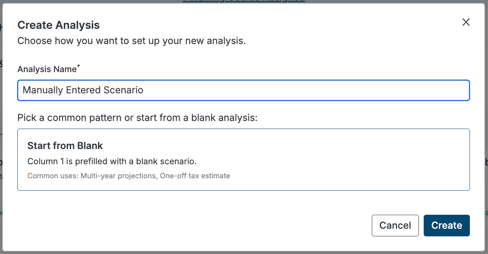
Common Uses
- Multi-year projections
- One-off tax estimates
- Custom planning situations
Using the 3-Column Guided Scenario
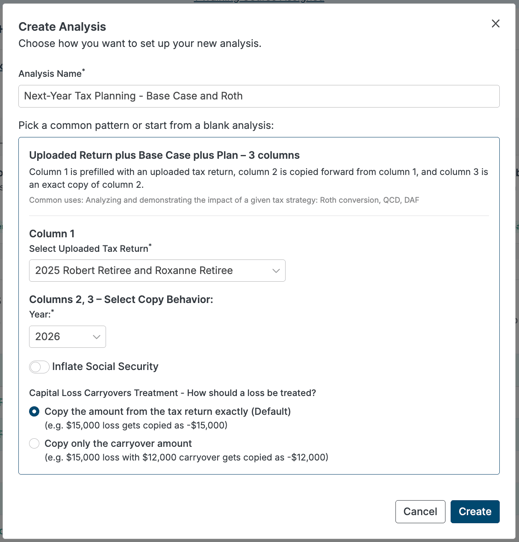
When Uploaded Return plus Base Case plus Plan – 3 Columns is selected, additional configuration options become available.
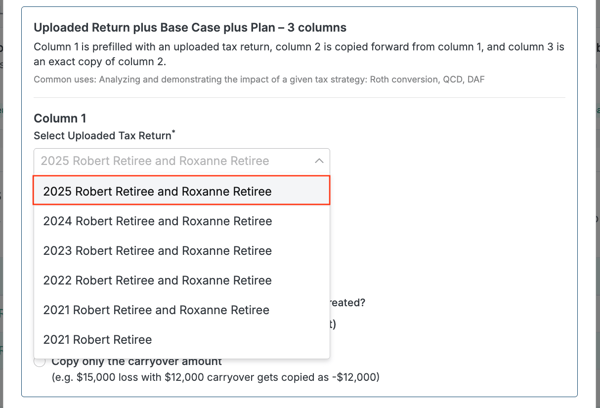
Step 1: Select the Uploaded Tax Return
Under Column 1, choose the tax return to use as the starting point for the analysis.
The selected return becomes Scenario 1.
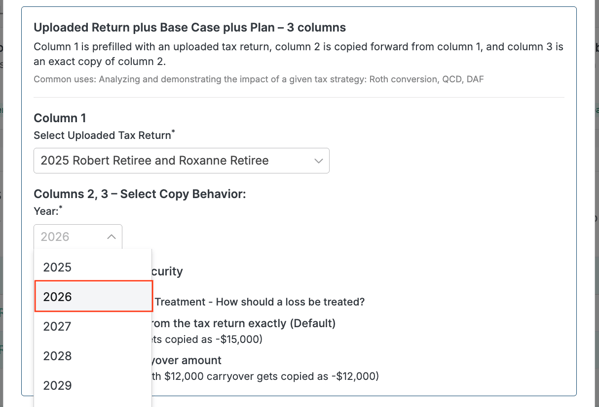
Step 2: Choose the Projection Year
Under Columns 2, 3 – Select Copy Behavior, choose the year for the projected scenarios.
Example:
- Scenario 1 = 2025 Return
- Scenario 2 = 2026 Base Case
- Scenario 3 = 2026 Plan
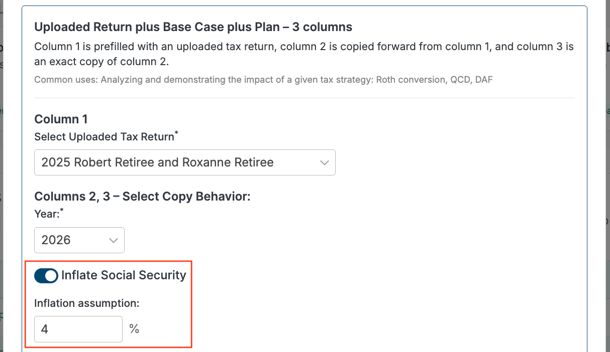
Step 3: Inflate Social Security (Optional)
Enable Inflate Social Security to have Social Security income in the projected scenarios automatically increase based on an inflation assumption.
When enabled:
- Toggle Inflate Social Security on.
- Enter the desired inflation percentage.
Example:
- Inflation Assumption = 4.00%
The inflation rate will be applied to Social Security income in the projected scenarios.
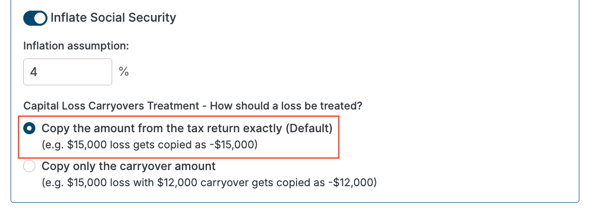
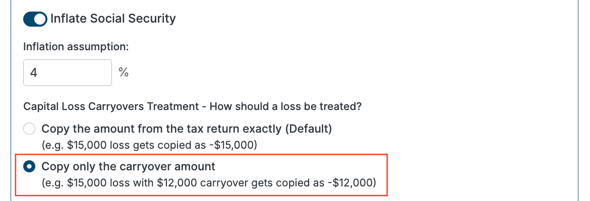
Step 4: Select Capital Loss Carryover Treatment
Choose how capital loss carryovers should be handled when scenarios are copied forward.
Copy the amount from the tax return exactly (Default)
The full amount from the tax return is copied into the projected scenarios.
Example
If the tax return shows:
- Capital loss = ($15,000)
Then:
- Scenario 2 = ($15,000)
- Scenario 3 = ($15,000)
Copy only the carryover amount
Only the actual carryover amount is copied into the projected scenarios.
Example
If the tax return shows:
- Capital loss = ($15,000)
- Carryover available = ($12,000)
Then:
- Scenario 2 = ($12,000)
- Scenario 3 = ($12,000)
Step 5: Create the Analysis
After reviewing the selections, click Create.
Guided Scenario Creation will automatically build the analysis structure and populate the scenarios.
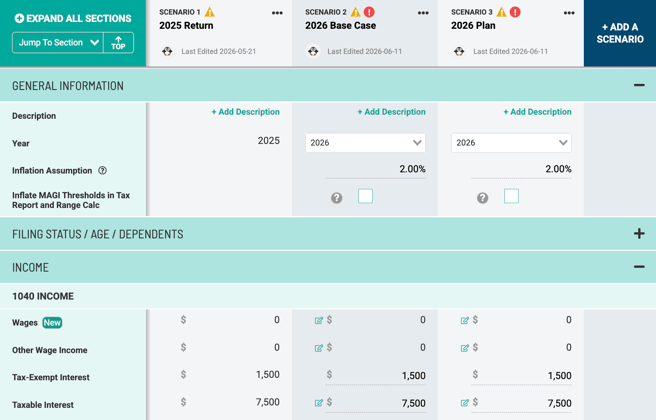
After creation, the analysis opens with three scenarios:
|
Scenario |
Purpose |
|
Scenario 1 |
Original tax return |
|
Scenario 2 |
Base Case projection |
|
Scenario 3 |
Planning scenario |
Within the analysis:
- Scenario years are automatically assigned.
- Inflation assumptions are applied where selected.
- Scenario 3 is an exact copy of Scenario 2, providing a clean starting point for planning changes.
- Users can immediately begin modifying the Plan scenario to model planning opportunities.
Example Workflow: Roth Conversion Analysis
- Create a new analysis.
- Select Uploaded Return plus Base Case plus Plan – 3 Columns.
- Choose the client's uploaded tax return.
- Select the next tax year.
- Configure Social Security inflation and carryover treatment as desired.
- Click Create.
- Leave Scenario 2 (Base Case) unchanged.
- Open Range Calc from Scenario 2 (Base Case) to determine a Roth Conversion amount.
- Enter the Roth conversion in Scenario 3 (Plan).
- Compare the results between the Base Case and Plan scenarios to demonstrate the impact of the strategy.
This workflow allows advisors to quickly create side-by-side comparisons without manually building and copying scenarios.