![Holistiplan Logo (800x200 px).webp]](https://help.holistiplan.com/hs-fs/hubfs/Holistiplan%20Logo%20(800x200%20px).webp?width=160&height=40&name=Holistiplan%20Logo%20(800x200%20px).webp)
💡 Please keep in mind that SSO with Holistiplan is Service Provider (SP) Initiated only. When you complete your setup on the Holistiplan side, a "Magic Link" will be generated for you. This is a direct SSO sign-on link that can be used in your Identity Provider to mimic an IDP initiated flow if desired.
OneLogin Setup
Setup the Application
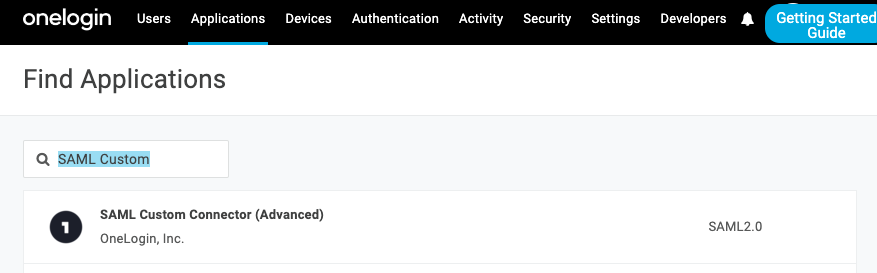
Under Applications > Applications click on the “Add App” button.

In the search bar, type "SAML Custom”, and click on the entry with the title “SAML Custom Connector (Advanced)”
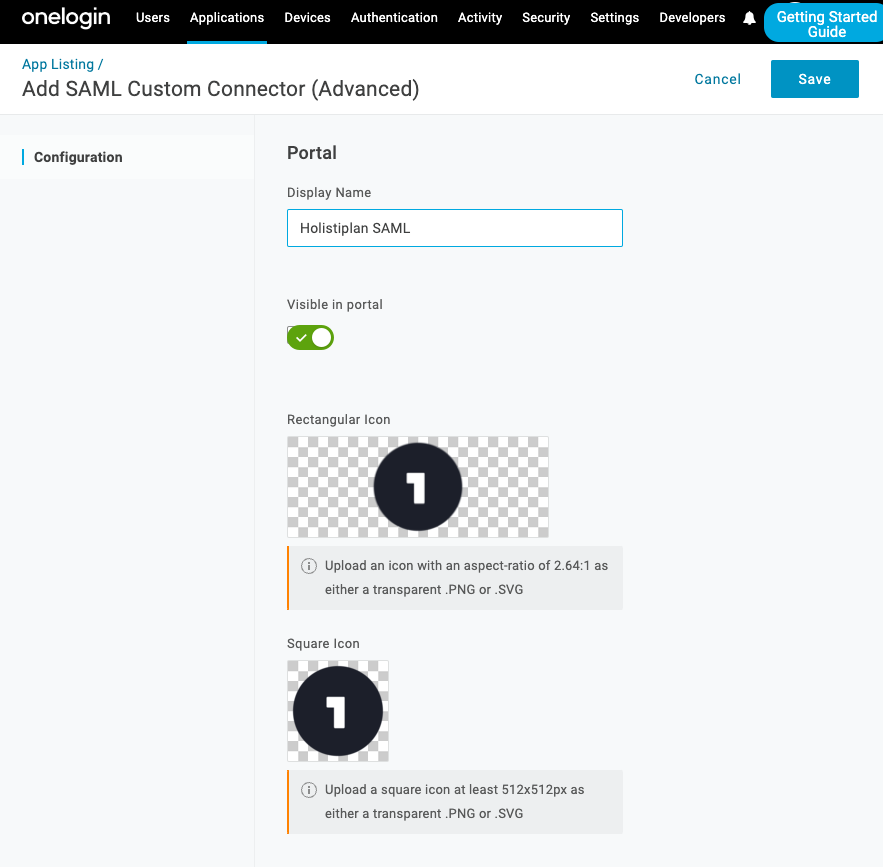
Name the application, and click “Save”
Configuration
On the left of the page, click on configuration. See list of values to set below:
| Name | Value |
|---|---|
| Audience (EntityID) | https://app.holistiplan.com/ |
| ACS (Consumer) URL Validator | https://app.holistiplan.com/sso/complete/saml/ |
| ACS (Consumer) URL | https://app.holistiplan.com/sso/complete/saml/ |
| Login URL | https://app.holistiplan.com/sso/login/saml?idp=onelogin&key=/main/ |
| SAML initiator | Service Provider |
| SAML nameID format |
Parameters
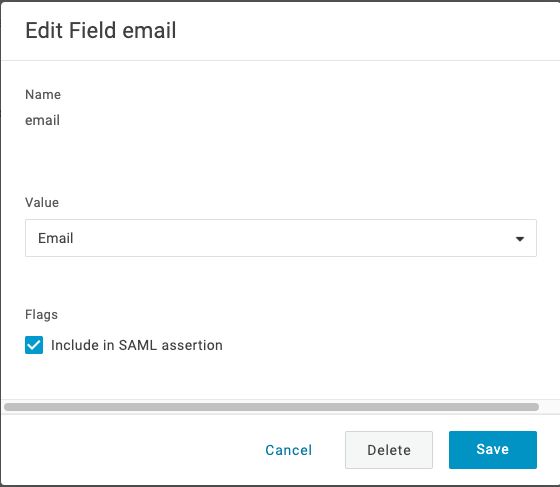
On the left of the page, click on Parameters. See table of attribute mappings needed below:
| SAML Custom Connector (Advanced) Field | Value |
|---|---|
| NameID value | |
| username | Username |
⚠️ When entering the Parameters, be sure to check the flag “include in SAML assertion”!
SSO
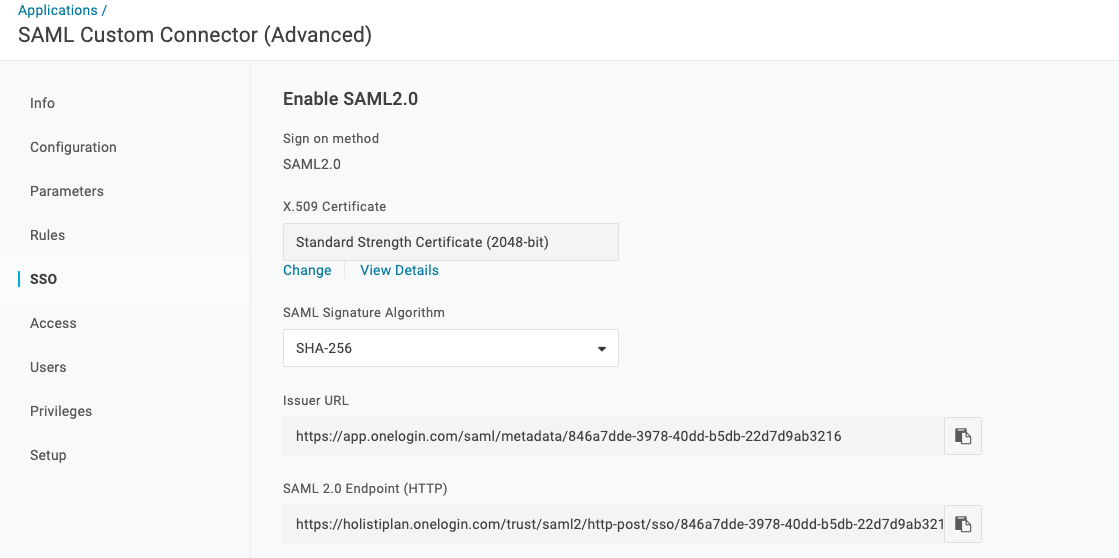
On the left of the page, click on SSO. The only thing to change on this page is to set “SAML Signature Algorithm” to SHA-256
Download Metadata
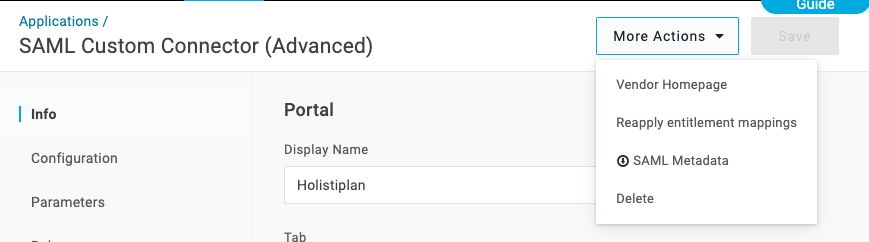
Once saved, click on “More Actions” and “SAML Metadata” to download the metadata XML file that you will need to setup SSO in Holistiplan.
Holistiplan Firm Admin Setup
-
Log in to your Holistiplan application and navigate to
Settings > Features & Tools > General -
Ensure that SSO Self Serve is enabled.

-
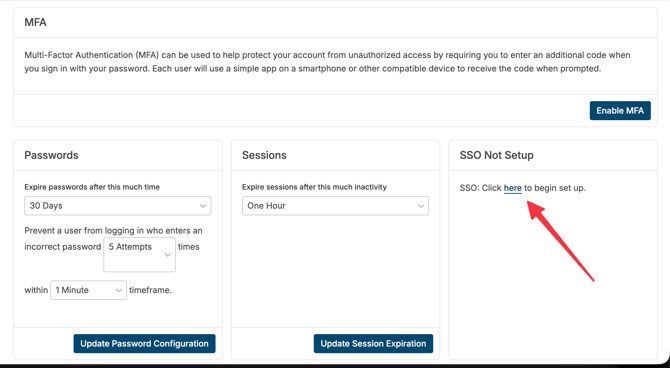
Once enabled, click on Security in the left hand menu to find the SSO Configuration box where you can begin setup.
-
Select OneLogin as your Identity Provider.
-
Click on OneLogin Settings within the configuration box.
-
Under Import from XML, upload the metadata file you downloaded from OneLogin.
This will auto-populate the required fields. Review that the details appear correctly, then click Submit.
-
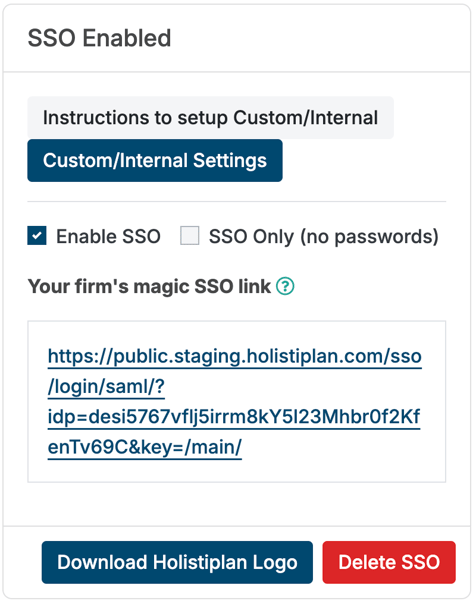
Choose your preferred authentication option:
-
Enable SSO – Users can log in via SSO or with a password.
-
SSO Only (no passwords) – Users must log in through SSO exclusively.
-
After this your setup is complete! Feel free to log out and log back in via SSO.
If you're still experiencing any issue or having any trouble with this setup, reach out to support@holistiplan.com