![Holistiplan Logo (800x200 px).webp]](https://help.holistiplan.com/hs-fs/hubfs/Holistiplan%20Logo%20(800x200%20px).webp?width=160&height=40&name=Holistiplan%20Logo%20(800x200%20px).webp)
In Scenario Analysis, users can create a baseline and change subsequent scenarios to model how a Roth conversion would affect a client. This is the most precise way to model the tax impact of a Roth conversion.
Best Practice: Set up a Baseline scenario that includes everything except the Roth conversion. Use the baseline to determine how much conversion to model. Once the Baseline is finalized and you have a conversion amount, copy the Baseline into a new scenario to model the conversion.
The Roth Conversion Worksheet can be found in the 1040 Income section. To access the Roth Conversion worksheet, click on the pencil icon in that row.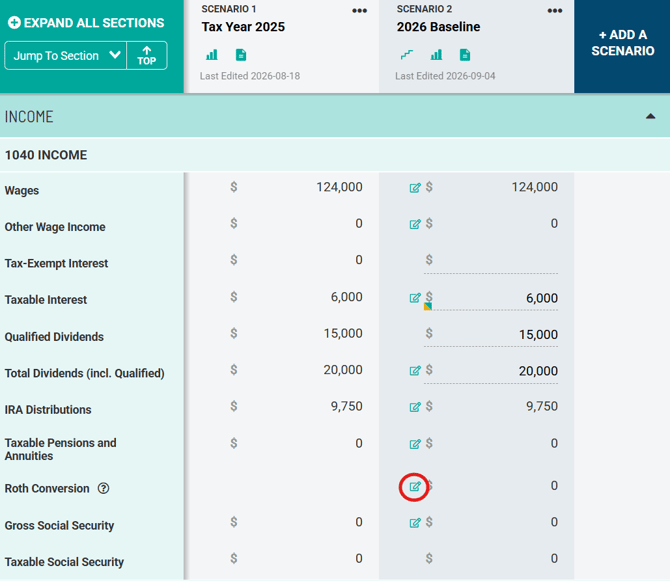
The worksheet allows a user to enter the total amount of Roth conversion across all taxpayers in a household or to segregate conversion amounts by taxpayer. A best practice is to always enter the conversion amount per taxpayer. Note that this is necessary for some state tax projections.
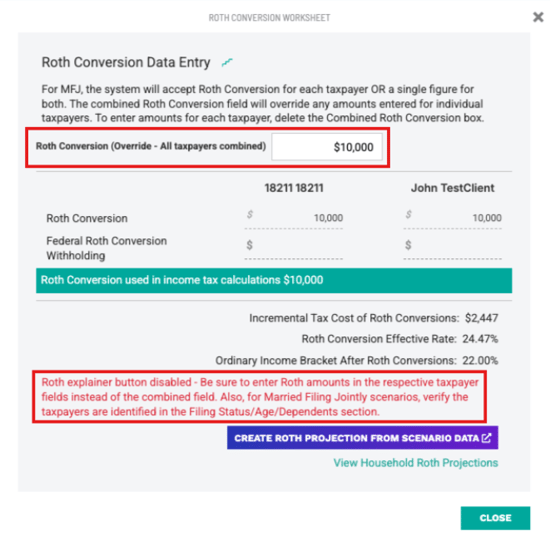
If the Roth Conversion (Override - All taxpayers combined) field has any data in it - including a "$0" - the Taxpayer 1 and Taxpayer 2 fields will be overridden by the value in the override field.
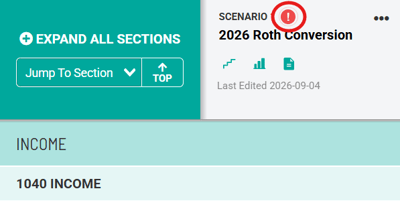
If the override field is in use, there will be a red exclamation point at the top of the scenario.
Open the Roth conversion worksheet, and delete any value in the Roth Conversion (Override - All taxpayers combined) field. Note that the red text at the bottom of the worksheet also indicates that the override field is in use.
Once the override field is blank and the Roth conversion amount(s) are entered per taxpayer, the override warnings will no longer show, and you can:
-
Review view-only version of any previously created Roth Explainer,
-
Convert an existing Roth Explainer to a Roth Projection, or
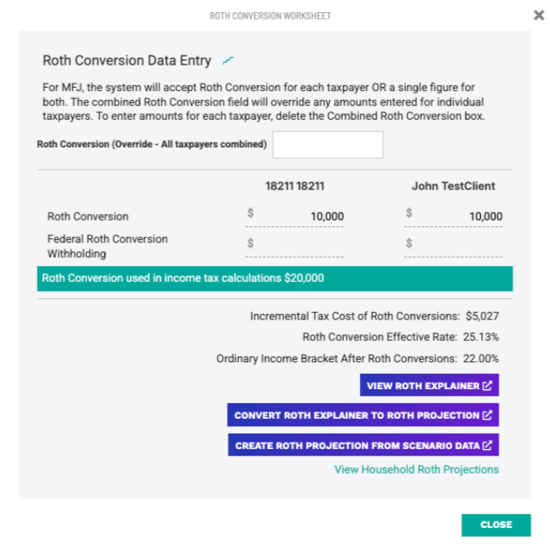
Once the amount of Roth conversion is entered (without any value in the override field), the worksheet will show the total conversion income used in income tax calculations in teal, and the incremental tax cost of conversion, Roth conversion effective rate, and the marginal tax bracket after the Roth conversion as well.
The incremental cost of the conversion is shown both in dollar amount and effective rate. Under the hood, Holistiplan calculates the tax with and without the conversion, so the cost of the actual funds converted can be illustrated. This not only shows tax on the amount converted, but also any additional tax that results because of the conversion.
Incremental Tax Cost = Total federal tax due as a result of the conversion / total distribution added to income (net converted + any withholding)
For example, if $50,000 is converted, but $1,000 is withheld for taxes, even though $49,000 is the net amount converted, the total distribution included in taxable income is $50,000, so the incremental tax cost would be the taxes due on the full $50,000, not the net amount of $49,000 that was converted.
HOLISTINOTE: Holistiplan assumes any conversions entered are 100% taxable. If the amount converted contains basis which is non-taxable, the pro-rata rules under IRC §408(d)(2) will apply. You will only want to enter the taxable portion of any Roth conversions in Holistiplan.
Pro-rata and IRA aggregation rules often come into play when making back-door Roth contributions. The IRS aggregates all IRAs in the account owner's name as one IRA, so making a non-deductible contribution and then converting that contribution may not be tax-free if that non-deductible contribution has earnings before being converted or if the account owner has IRAs where deductible contributions have been made.
Example: If a client makes a $7,500 non-deductible contribution as part of a back-door Roth IRA contribution strategy, but has a combined balance of $92,500 in a Rollover IRA with no basis, then if that $7,500 contribution is immediately converted, that conversion is 92.5% ($92,500 / $100,000) taxable and 7.5% ($7,500 / $100,000) tax-free. So, even though immediately converted with no earnings, 92.5% (or $6,937.50) of the $7,500 non-deductible contribution is taxable, and only 7.5% ($562.50) is tax-free.
To determine how much of a conversion to make, use the Solve for Max and/or Range Calc features on the Baseline scenario.
Solve for Max will indicate how much more ordinary income or capital gains income can be realized in a given scenario before there is an increase or decrease in the effective tax rate. This is not necessarily the same thing as a change in the marginal tax bracket (as seen in our example below).
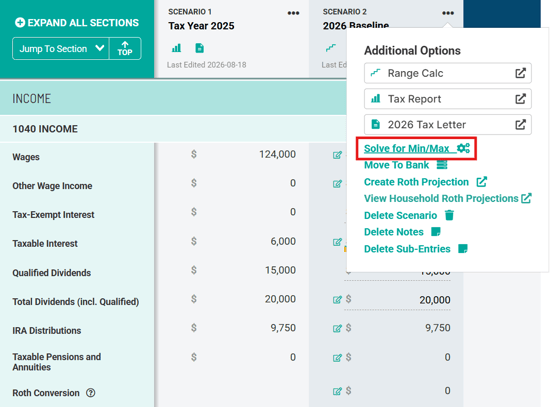
After clicking on Solve for Min/Max, the scenario will take a moment to calculate and populate the values. In the example below, the taxpayer could add $7,000 of ordinary income before seeing an increase in the effective tax rate on the next $500 of income. 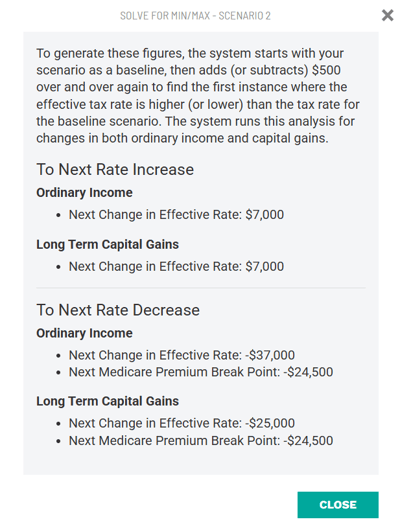
Read more about the Solve for Max feature here.
Range Calc takes that one step further and illustrates what happens beyond that next change in the effective rate, as well as provides attribution for the various taxes and phase-ins/outs that make up the total tax rate. You can access this tool by clicking on the step icon circled below, or selecting that same tool in the "Additional Options" menu accessed by clicking the three dots to the right of the scenario title.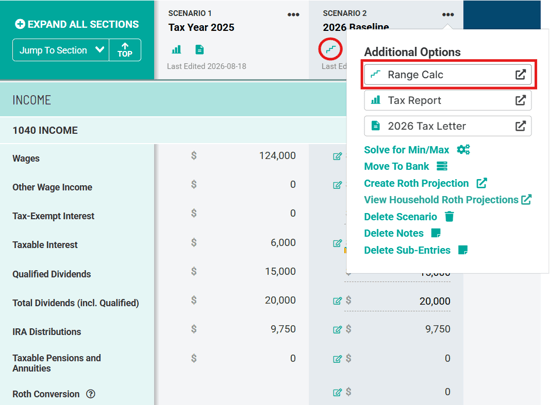
Below is an example of what a Range Calc graph will look like. Recall that the first increase in the effective rate (total tax / taxable income) occurs at $7,000 of additional ordinary income. This is when the taxpayer starts being subject to NIIT. The additional 0.1% comes from the AGI floor of 0.5% of AGI that charitable contributions must overcome, so additonal AGI means less charitable deductions here.
However, the client can add roughly $48k of additional ordinary income, in the form of a Roth conversion here, and still stay within the 22% marginal ordinary income bracket (light blue).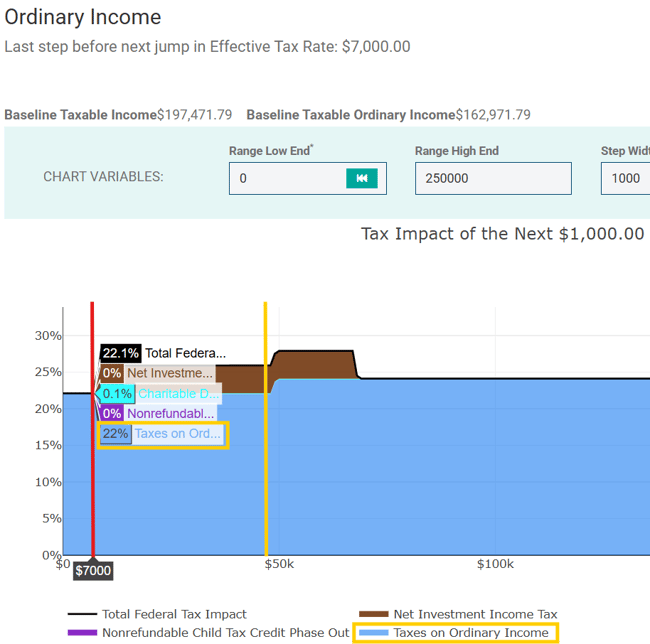
Read more about Range Calc here.
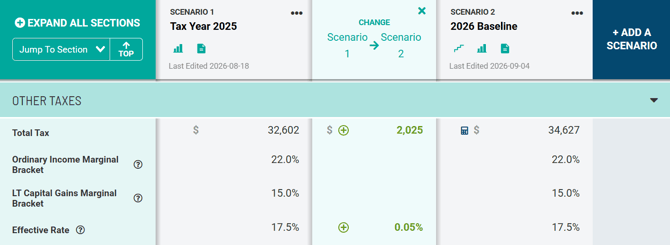
Once the Baseline and Roth Conversion scenarios are finalized, use the Comparison Tool to see the differences side-by-side. Since the only difference between the two scenarios is the Roth conversion, the Total Tax difference equals the incremental cost of conversion as shown in the Roth conversion worksheet.
Visit our Webinars page and click on Modeling Roth Conversions in Scenario Analysis under Support How-to Webinars to see the most recent recording. This is a 30-minute webinar dedicated to modeling Roth conversions in scenario analysis!
To take a Roth conversion analysis one step further, analyze the long-term tax impact of Roth conversions in our our multi-year Roth Projection Tool!