![Holistiplan Logo (800x200 px).webp]](https://help.holistiplan.com/hs-fs/hubfs/Holistiplan%20Logo%20(800x200%20px).webp?width=160&height=40&name=Holistiplan%20Logo%20(800x200%20px).webp)
While the Scenario Analysis comparison tool allows for a comparison between two scenarios, there are some strategies (e.g., installment sales, inherited IRA distributions) that benefit by reviewing the results across multiple years and the aggregating tax costs or savings. Cases allow for this multi-year analysis.
Each Case contains a group of scenarios (one per tax year) where the end results are totaled together, making it easier for side-by-side multi-year comparisons. This feature makes it easy to compare multi-year strategies side-by-side. Each Case is color-coded, and its combined results appear in a dark blue Case Totals column:
For Example: Selling a Rental Property in One Year vs. Three Years
In this example, the Peter and Paula Professor household is selling a rental property with a $600,000 long-term capital gain. Rental income and wages are held constant every year so that only the timing of the gain changes.
TIP: While you can create multi-year cases manually using the steps outlined below, our AI Assistant can help create these for you! Just check out the article below for more details on how that AI Assistant works.
Holistiplan AI Assistant
Setting Up the Cases
- Sell Rental Property in 2026 (purple; left-hand side) — the full $600,000 long-term gain is realized in 2026; 2027 and 2028 have no gain but are still included
- Installment Sale of Rental Property Over 3 Years (blue; right-hand side) — $200,000 of gain is realized in each of 2026, 2027, and 2028
Comparing the Results
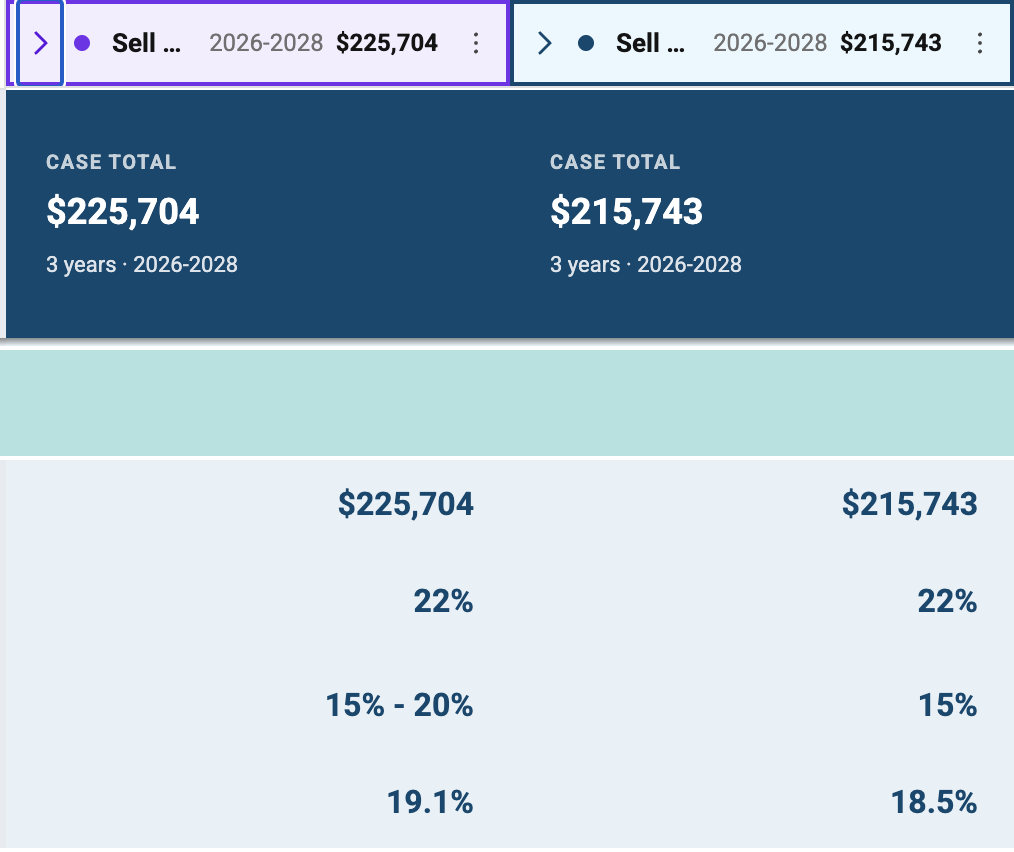
Selling in a single year pushes part of the gain into the 20% long-term capital gains bracket. Spreading the sale over three years keeps all of the gain at 15%, saving the household roughly $10,000.
Note: this example is for illustration purposes only and ignores recapture
Modeling Cases is a two step process:
- Creating a Case and adding a scenario for each tax year
- Duplicating the Case and adjusting it to model the alternative strategy
Creating a Case
Step 1: Build the Foundation
- Open the household's Scenario Analysis.
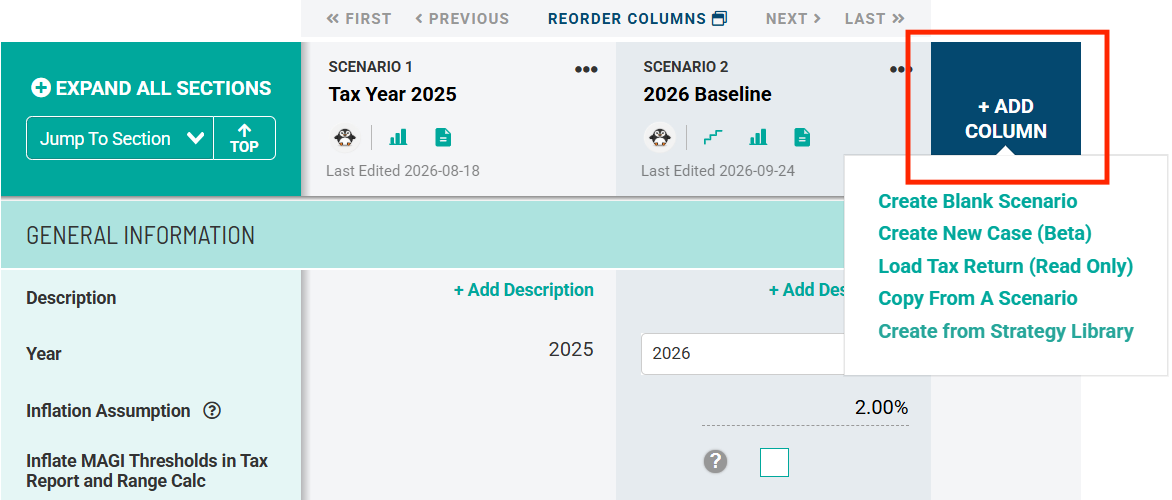
- Click Add Column, then select Create a New Case.
- Enter a name for the Case that describes the strategy (e.g., Sell Rental Property in 2026).
- Under Copy from Scenario, choose the existing scenario to use as the starting point.
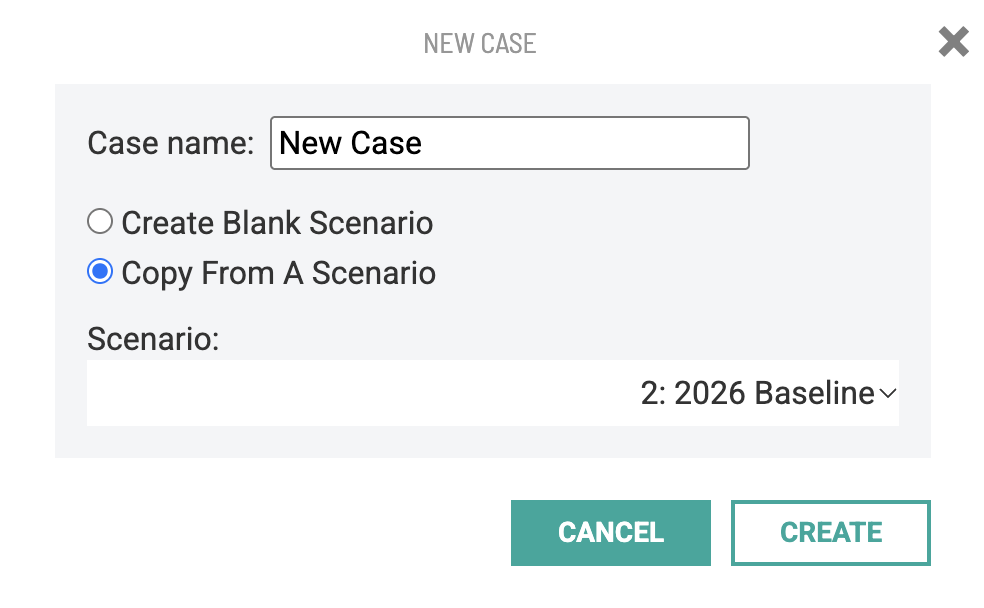
- Click Create Case. The new Case opens with a single scenario.
- Rename the scenario to the tax year it represents (e.g., 2026). The new name updates at the top of the column.
Step 2: Add a Year to the Case
- Click the "..." icon at the top of the scenario column.
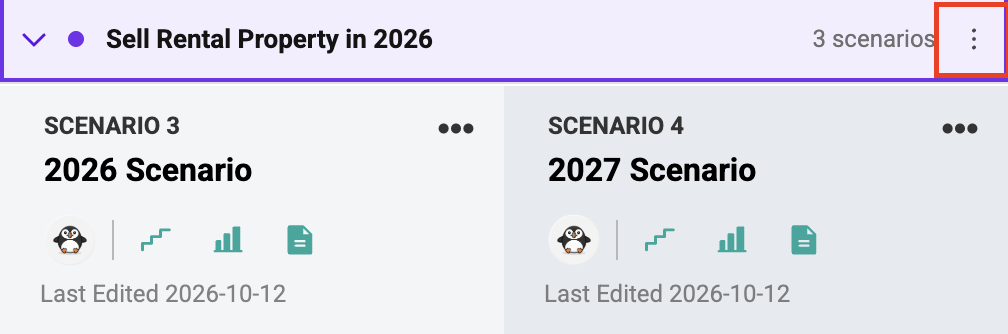
- Select Add a Year After from the Additional Options menu.
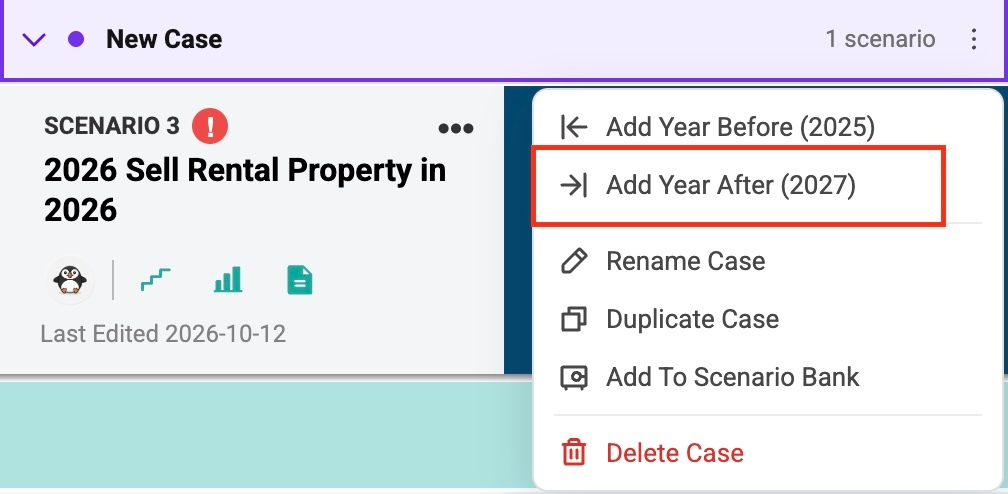
- Under Copy from Scenario, select the year just created, then click Add.
- Repeat for each additional year. For a three-year comparison, the Case will contain 2026, 2027, and 2028.
Caution: Holistiplan does not automatically apply carryforwards from one scenario to future scenarios within a case because each scenario is modeled independently. When carryforwards are present, be sure to review and manually apply those carryforwards where applicable. Common examples of carryforwards include, but are not limited to: capital loss carryforwards, unused charitable deduction carryforwards, prior year qualified business losses, and Schedule E passive loss carryforwards.
If some columns are not readily accessible, click Next to scroll through all cases.
Duplicating a Case to Compare Strategies
Once the first Case is built, duplicate it to model the alternative without re-entering data.
- Click the "..." icon at the top of the last scenario column in the Case.
- Select Duplicate Case from the Additional Options menu
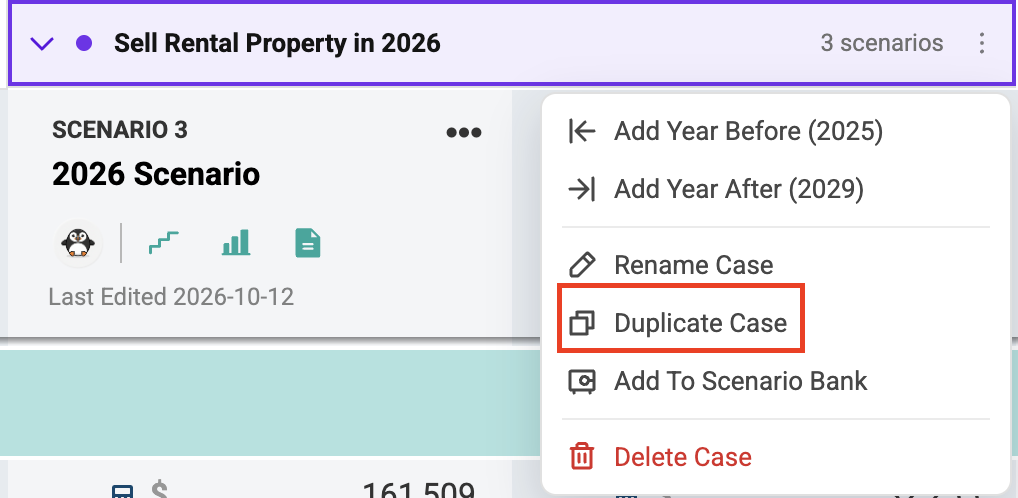
- Enter a name for the new Case (e.g., Sell Rental Property Over 3 Years, 2026–2028). The duplicate appears in a different color from the original.
- Update the values in each year of the new Case to reflect the alternative strategy.
Reviewing Case Totals
Each Case includes a dark blue Case Totals column that sums every scenario in the Case. Compare the Case Totals columns to see which strategy results in the lower combined tax.
Expand or collapse a Case:
Click the down caret on the Case to hide the individual years and show only the totals

Scroll between columns — click Next when columns are off screen

See what changed — scroll down the Case Totals columns to find the lines that differ between Cases, such as the capital gains bracket or effective tax rate
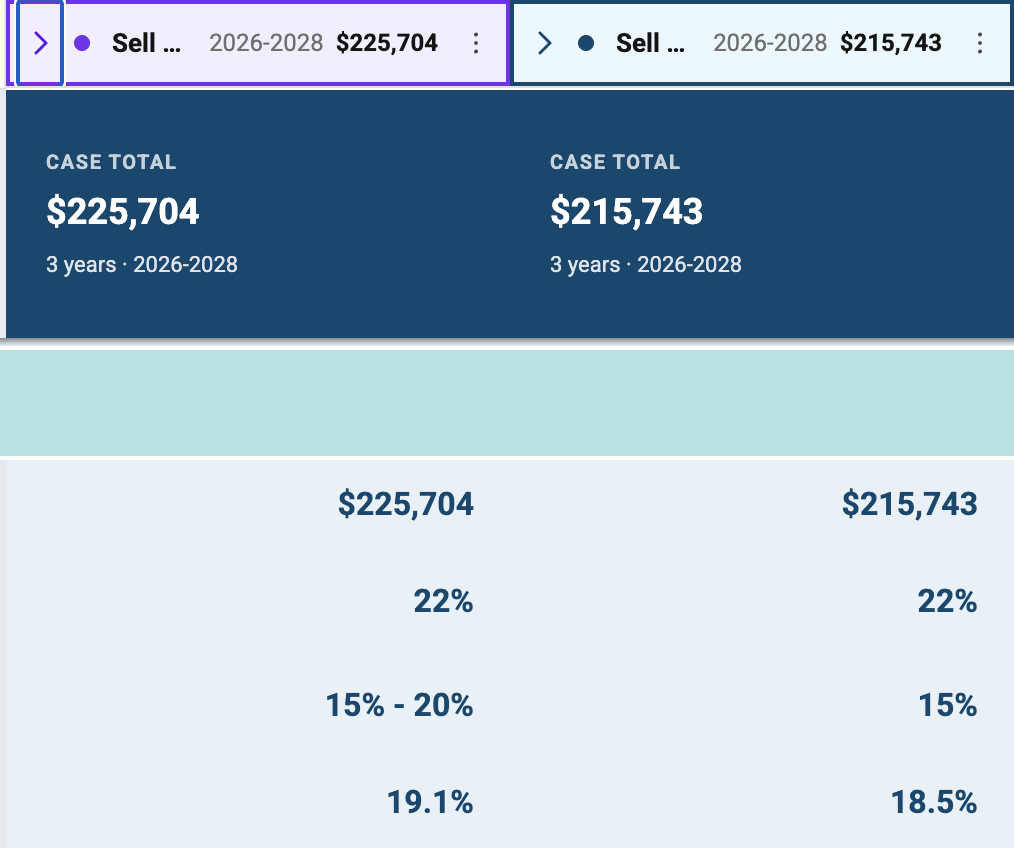
Important: Include the same tax years in every Case being compared, even if some years don't change. In the example above, the single-year sale still models 2027 and 2028 so its totals compare apples to apples with the three-year Case.